

This is the Stable version of the documentation. The latest version is experimental and under active development. You can use the version selector in the top-right menu to switch versions for this specific page, or click here to go to the latest version's homepage.
Setup Single Sign-On of SonarQube with Opstella
Prerequisites
Section titled “Prerequisites”To Setup Single Sign-On with Opstella, you need
- 📦Opstella Keycloak
- Your dedicated Keycloak Realm.
foobar-opstella; Please change accordingly
- Your dedicated Keycloak Realm.
- 🔑OpenID Connect Credentials: Client ID, Client Secret.
- Gather Client ID, Client Secret - from Procuring Keycloak Credentials
SonarQube Single Sign-On Integration
Section titled “SonarQube Single Sign-On Integration”SonarQube Single Sign-On integration works by using SonarQube plugin which we have done while See SonarQube Installation (Plugins Configurations in Helm Values)
You need to go to SonarQube instance that you have installed and configure within its settings menu.
-
Go to
https://${SONARQUBE_DOMAIN}and Login with Initial Admin Accountadmin- You may see the warning about using plugins, click
I understand the risk
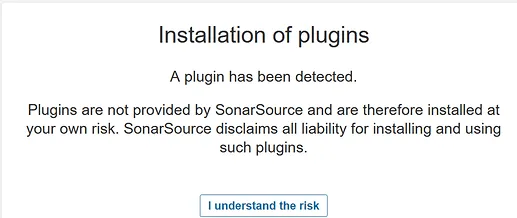
- You may see the warning about using plugins, click
-
Go to
Administrationtab >Configurationtab >SecurityLeft side menuAny Configuration that requires you to enabled (
True), you need to click the toggle switch and the switch is in colored (not greyed).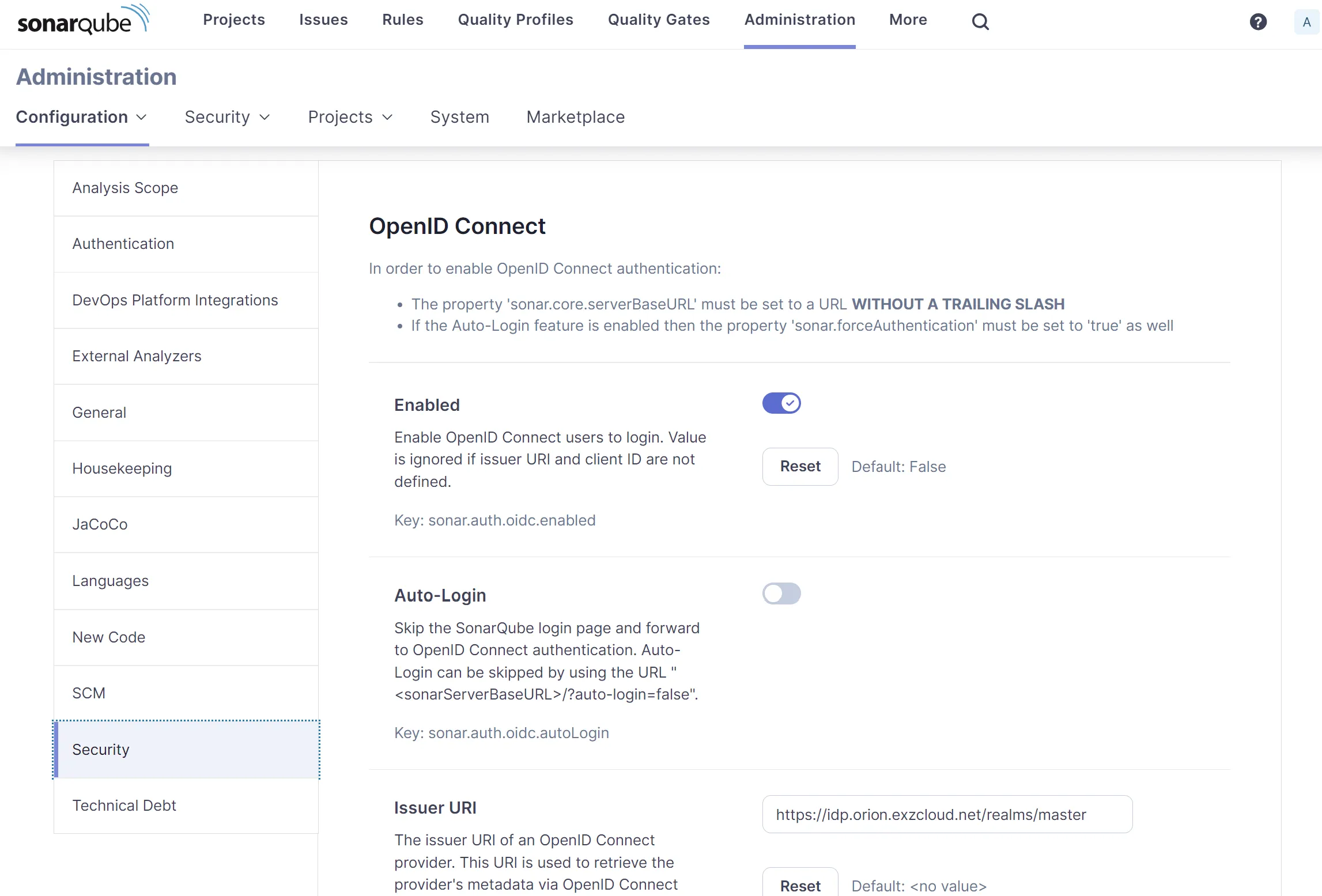
While editing any of the value in the field, there should be a save button on each section. Be sure to put the value in and click
Save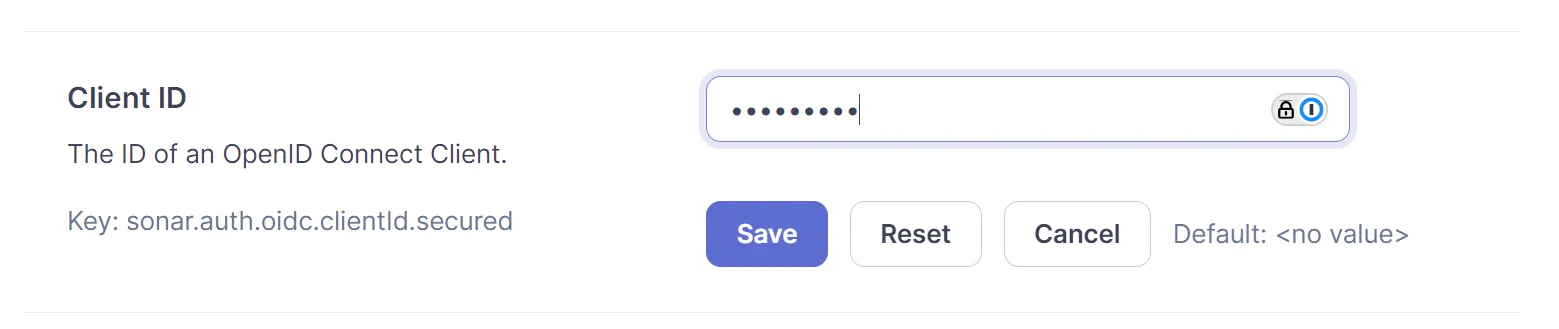
Configure follow by the list:
💡 Your dedicated Keycloak Realm.
foobar-opstella; Please change accordingly- Enabled:
True - Issuer URL:
https://${KEYCLOAK_DOMAIN}/realms/${KEYCLOAK_REALM} - Client ID:
CHANGEME🔑 - Client secret:
CHANGEME🔑 - Scopes:
openid email profile - Synchronize groups:
True - Groups claim name:
groups - Icon path:
/images/opstella-logo.svg - Background color:
#5c23fc - Login button text
Opstella
You will be testing Single Sign-On Integration in End-to-End Testing/Single Sign-On for SonarQube
- Enabled:
Configure the same settings over the API
Section titled “Configure the same settings over the API”The screenshots above are the only documented path, but every setting has an API equivalent. Use this when the SonarQube UI is not reachable, or to script the configuration.
kubectl port-forward --namespace devsecops-system svc/sonarqube 19000:9000 &💡 The Service is named
sonarqube, notsonarqube-sonarqube.
S="http://127.0.0.1:19000/api/settings/set"A="-u ${SONARQUBE_ADMIN_USERNAME}:${SONARQUBE_ADMIN_PASSWORD}"
set_setting() { curl -s -o /dev/null -w "%{http_code} $1\n" $A -X POST "$S" -d "key=$1" -d "value=$2"; }
set_setting sonar.auth.oidc.issuerUri              "https://${KEYCLOAK_DOMAIN}/realms/${KEYCLOAK_REALM}"set_setting sonar.auth.oidc.clientId.secured       "${SONARQUBE_OIDC_CLIENT_ID}"set_setting sonar.auth.oidc.clientSecret.secured   "${SONARQUBE_OIDC_CLIENT_SECRET}"set_setting sonar.auth.oidc.scopes                 "openid email profile"set_setting sonar.auth.oidc.groupsSync             "true"set_setting sonar.auth.oidc.groupsSync.claimName   "groups"set_setting sonar.auth.oidc.iconPath               "/images/opstella-logo.svg"set_setting sonar.auth.oidc.backgroundColor        "#5c23fc"set_setting sonar.auth.oidc.loginButtonText        "Opstella"
# Enable last - see the warning belowset_setting sonar.auth.oidc.enabled                "true"
💡 Every call must return 204.
Verify without printing any secret:
curl -s $A "http://127.0.0.1:19000/api/settings/values?keys=sonar.auth.oidc.enabled,sonar.auth.oidc.issuerUri"When the IdP uses a private or self-signed certificate
Section titled “When the IdP uses a private or self-signed certificate”Every OIDC login redirect goes out through the browser, which is why the Keycloak login page
always appears. The failing call is the back-channel one the service makes itself — discovery
and token exchange — and it is the only one that has to trust the IdP certificate. When it fails,
the browser is simply redirected back to the login page: the Pod stays Ready, the Helm release
stays deployed, and most services log nothing at all.
SonarQube fails with a redirect to /sessions/unauthorized; the server log shows:
javax.net.ssl.SSLHandshakeException: PKIX path building failed: ...unable to find valid certification path to requested target at OidcClient.getProviderMetadata(OidcClient.java:217)It runs on the JVM, so the certificate has to go into the JVM truststore. The chart does that with
an init container when caCerts is set.
Publish the IdP certificate chain as a ConfigMap in the same Namespace:
kubectl create configmap idp-ca-bundle \ --namespace devsecops-system \ --from-file=ca.crt=/path/to/idp-ca.crt \ --dry-run=client -o yaml | kubectl apply -f -Then in sonarqube-values.yaml:
caCerts: enabled: true configMap: name: idp-ca-bundle key: ca.crt path: idp-ca.crtRestart is required — the truststore is built at Pod startup:
kubectl rollout restart statefulset/sonarqube --namespace devsecops-systemFinished?
Use the below navigation to proceed