

This is the Experimental version (Latest). It is under active development and may change. For the most reliable documentation, use the version selector in the top-right to switch to Stable, or click here to go to the Stable version's homepage.
Harbor Configurations
Last updated:
Create Harbor Projects
Section titled “Create Harbor Projects”Create Harbor Project for Opstella
Section titled “Create Harbor Project for Opstella”You will be store Container Images for Opstella here.
-
Go to
${HARBOR_DOMAIN}and Login with Initial Admin Account. -
Go to
Projectsmenu >+ New Project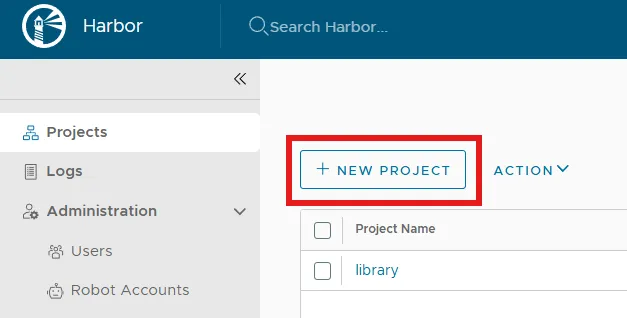
-
Create
opstella-platformProject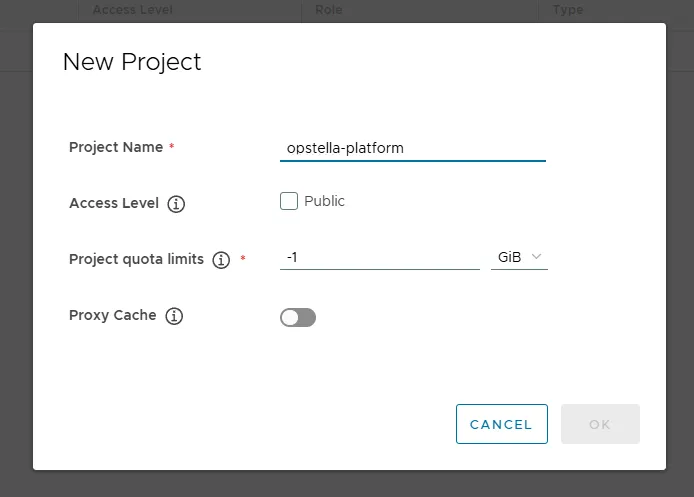
Create Harbor Projects for CI/CD Pipelines Container Image Mirrored/Proxy Caches Repository
Section titled “Create Harbor Projects for CI/CD Pipelines Container Image Mirrored/Proxy Caches Repository”To ease on CI/CD Pipelines Runtime which is container-based. (GitLab Runner with Kubernetes Executor + Opstella Standard GitLab CI Pipelines)
Directly pull from source may exhaust your network bandwidth/utilisation and the availability to access the registry.
Mirrored/Proxy Caches on Harbor Projects are created to act as a domestic storage for container images that frequently used by CI/CD Pipelines without extensively access the source registry.
-
Go to
Administrationmenu >Registries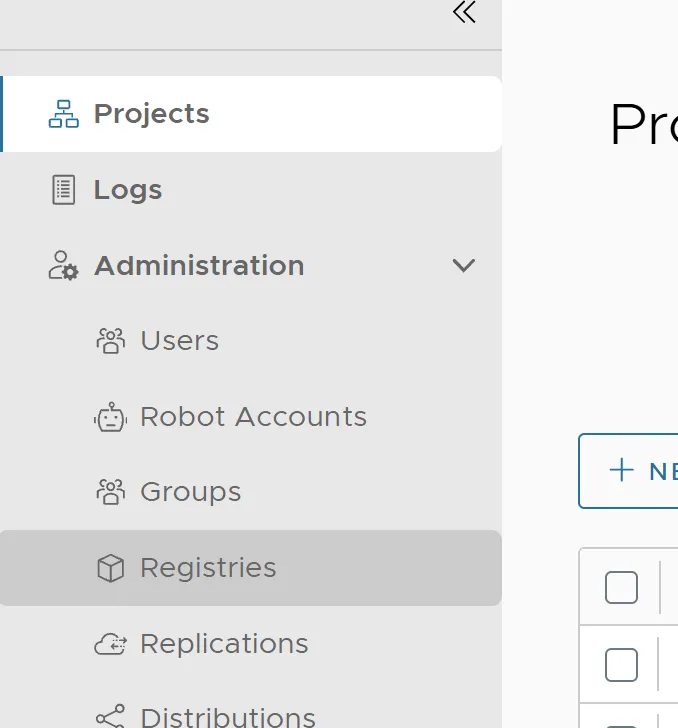
-
Click
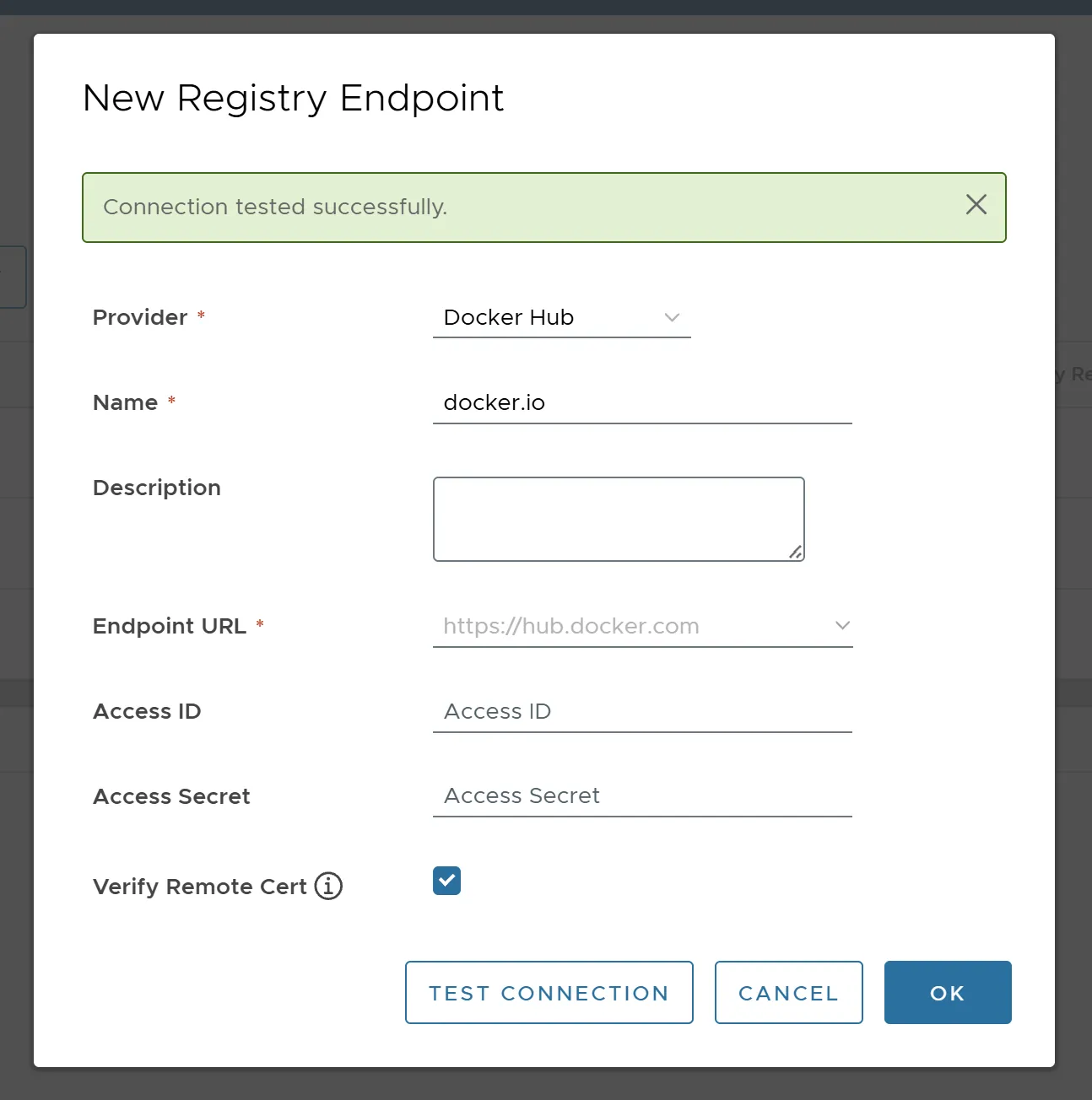
+ New Endpointand populate these infomation.- Registry: Docker Hub
- Provider: Docker Hub
- Name:
docker.io - Endpoint URL:
https://hub.docker.com
- Registry: gcr.io
- Provider: Docker Registry
- Name:
gcr.io - Endpoint URL:
https://gcr.io
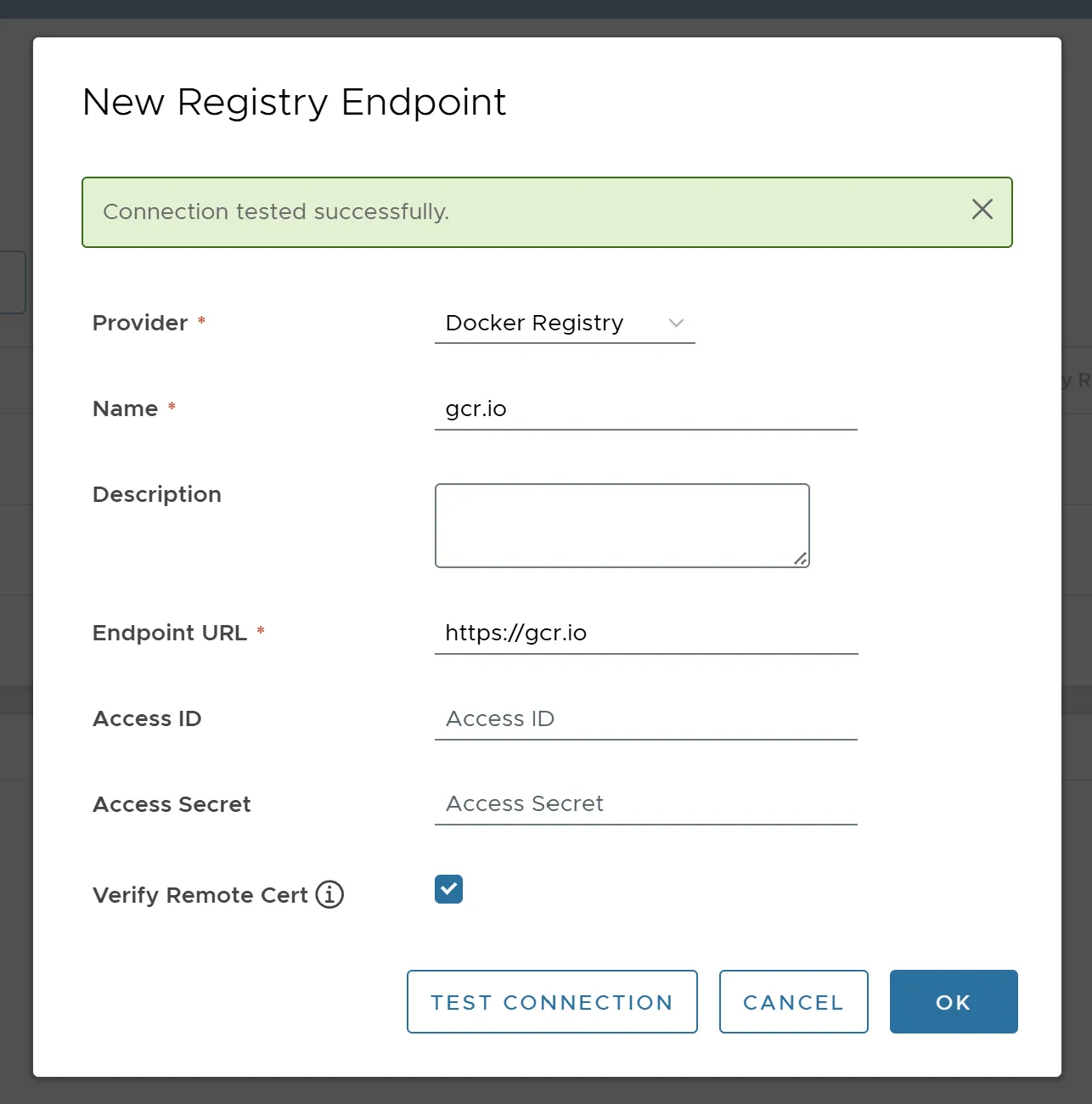
- Registry: quay.io
- Provider: Docker Registry
- Name:
quay.io - Endpoint URL:
https://quay.io
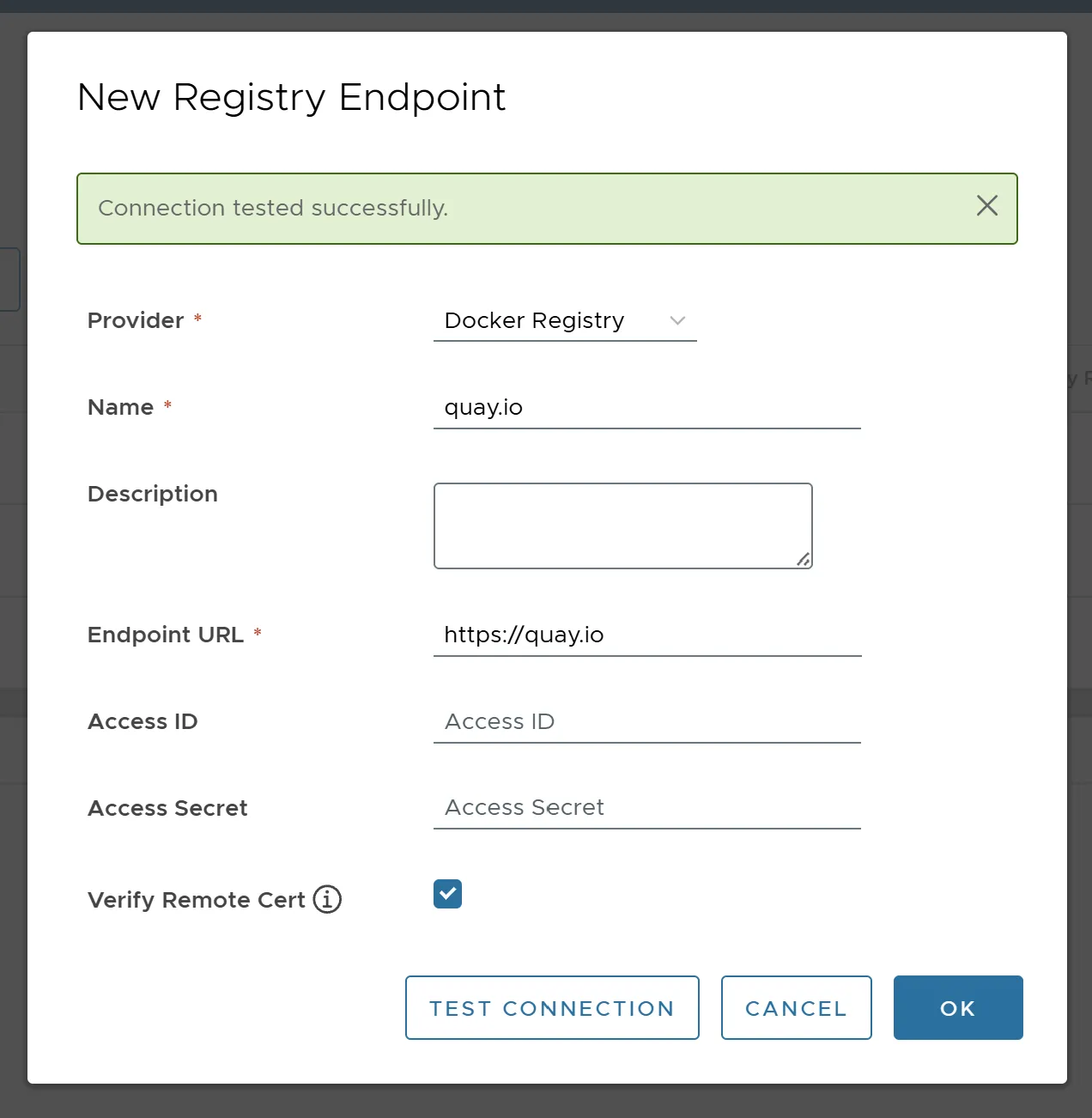
- Registry: ghcr.io
- Provider: Docker Registry
- Name:
ghcr.io - Endpoint URL:
https://ghcr.io
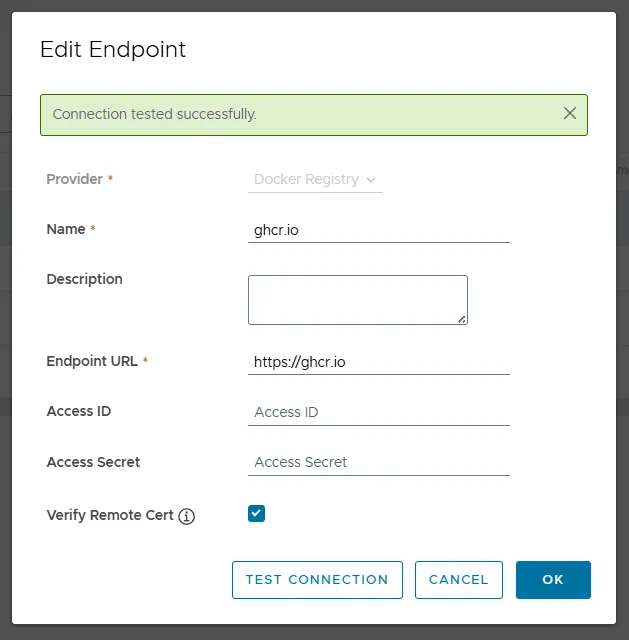
- Registry: Docker Hub
-
You should have registries recorded like this.
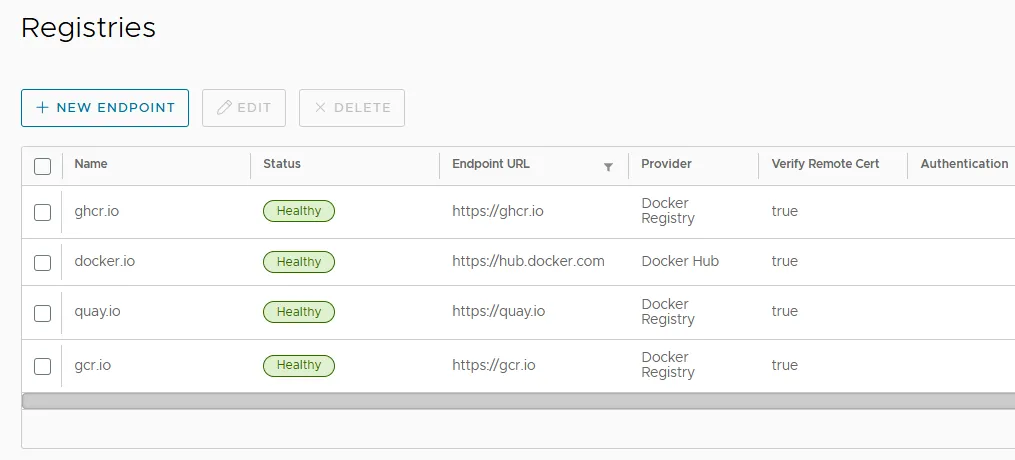
-
Go to
Projectsmenu >+ New Project -
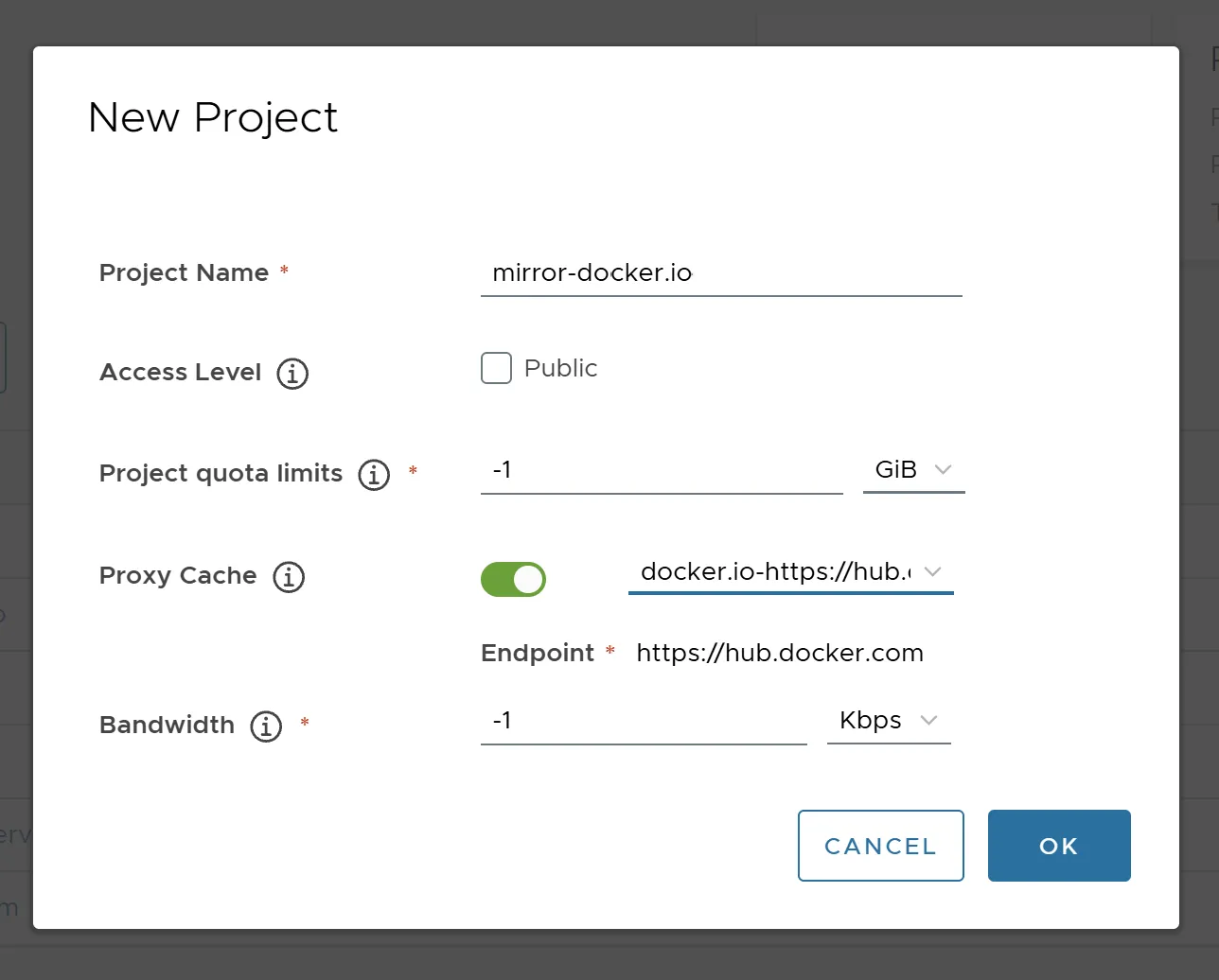
Create Proxy Cache Projects
Create Each Project for each of registries that you previously create them.
-
Registry: Docker Hub
- Project Name:
mirror-docker.io - Tick Proxy Cache, choose
docker.io-https://hub.docker.com
- Project Name:
-
Registry: gcr.io
- Project Name:
mirror-gcr.io - Tick Proxy Cache, choose
gcr.io-https://gcr.io
- Project Name:
-
Registry: quay.io
- Project Name:
mirror-quay.io - Tick Proxy Cache, choose
quay.io-https://quay.io
- Project Name:
-
Registry: ghcr.io
- Project Name:
mirror-ghcr.io - Tick Proxy Cache, choose
ghcr.io-https://ghcr.io
- Project Name:
-
-
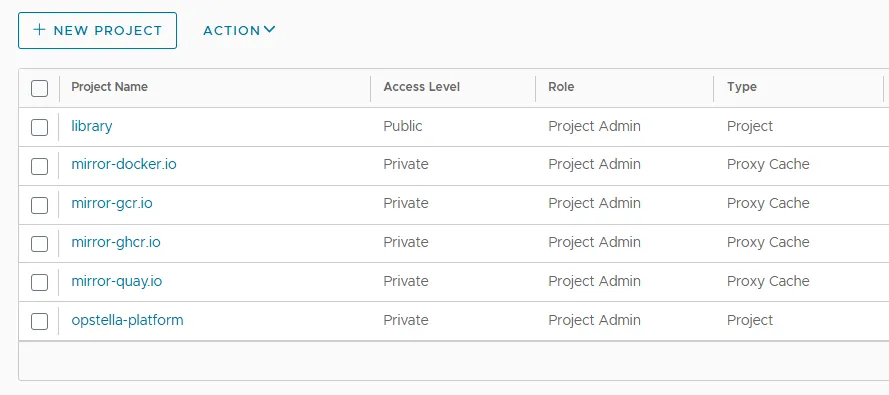
Proxy Cache Projects should look like this.
Create Robot Accounts
Section titled “Create Robot Accounts”Create Robot Account for Opstella Deployment
Section titled “Create Robot Account for Opstella Deployment”This will be a credentials used to push/pull while installing Opstella Container Images.
-
Go to
Administrationmenu >Robot Accounts -
Create New Robot Account
+ New Robot Account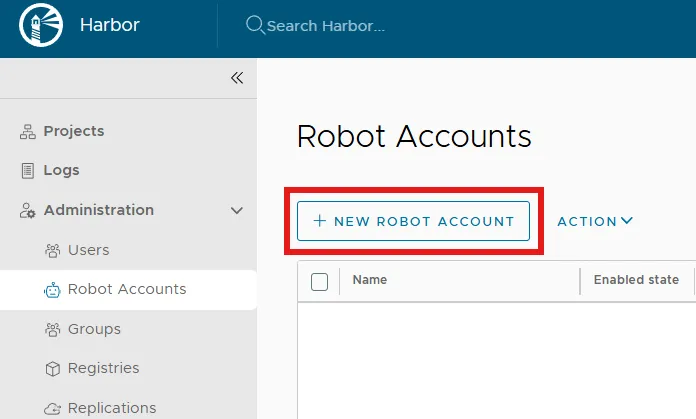
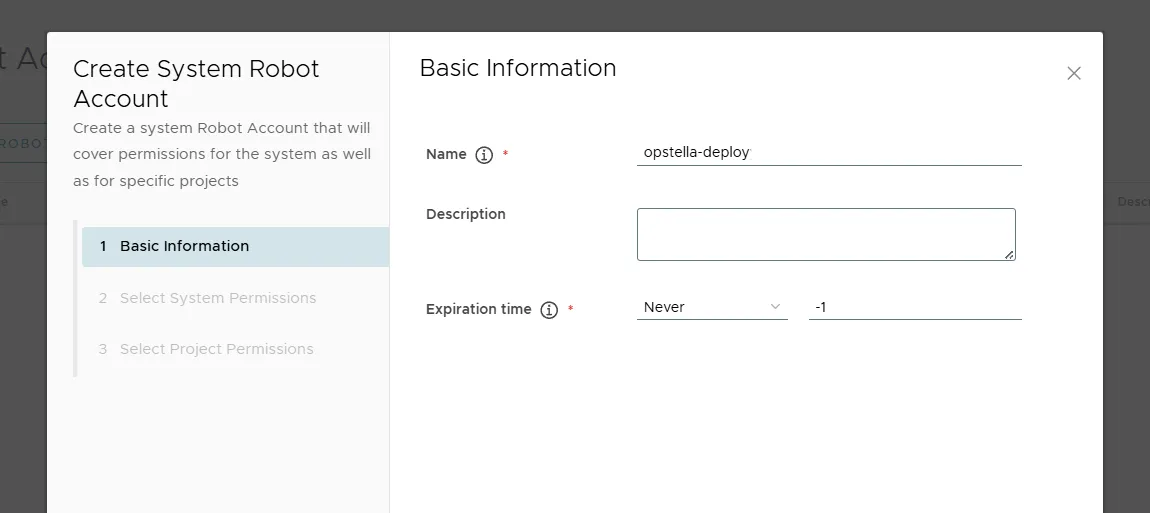
Basic Information
- Name:
opstella-deploy - Description:
Deploy Credentials for Opstella - Expiration time:
Never
- Name:
-
Click
Nextto skip Assigning System Permissions -
Assign
opstella-platformProject Permissions- Tick on
opstella-platformProject
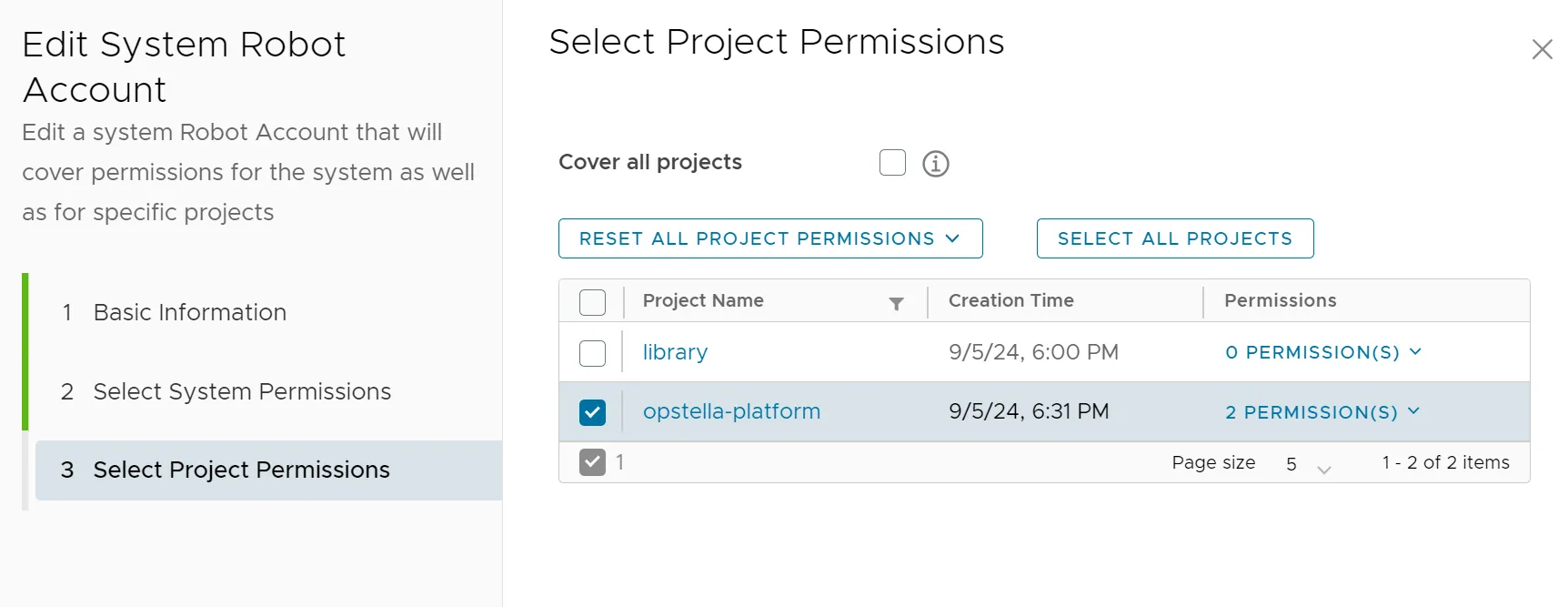
- Assign Pull, Push Repository Permissions
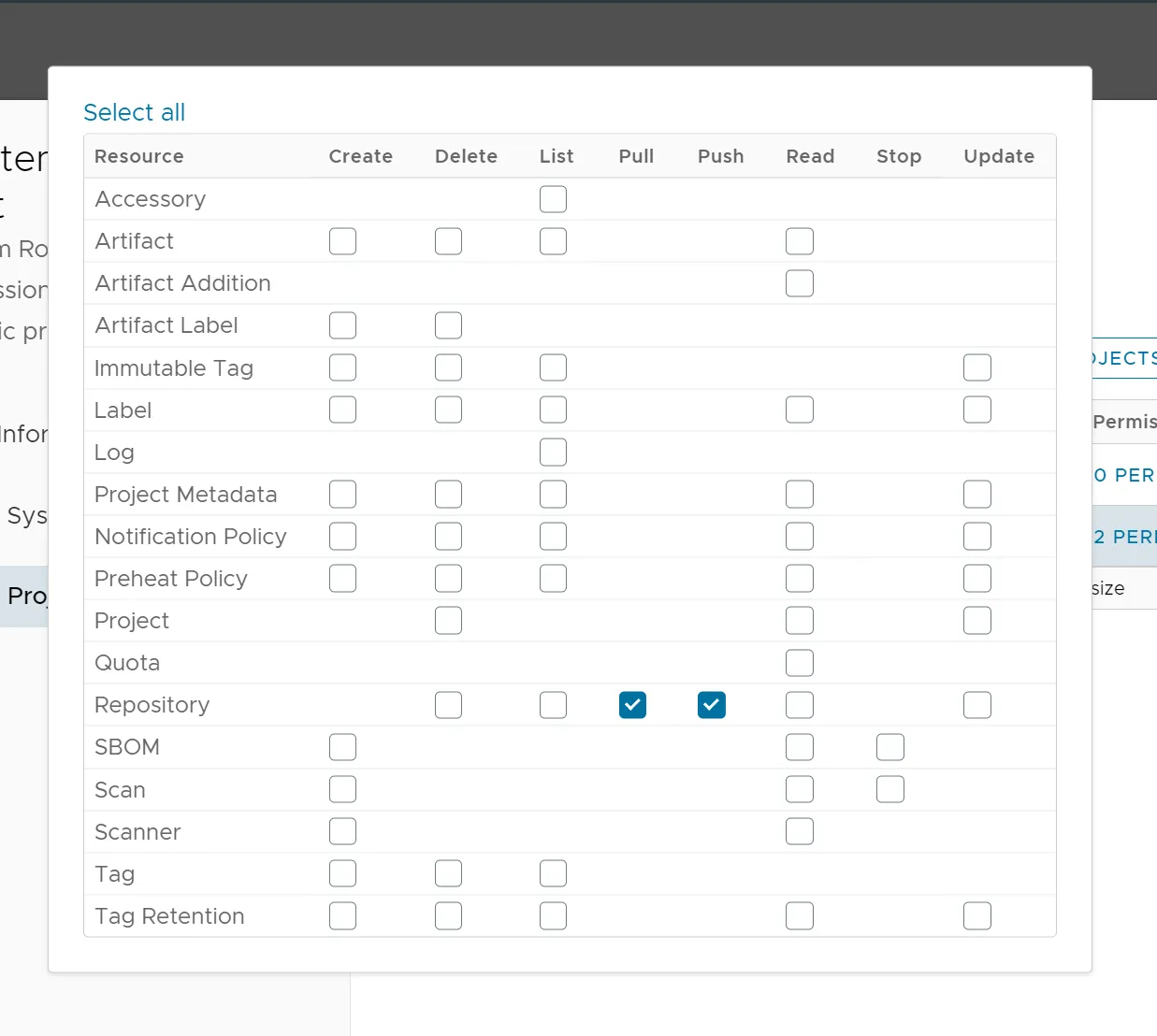
- Tick on
-
Keep the token SAFE as you will be using it while install
Opstellain the later step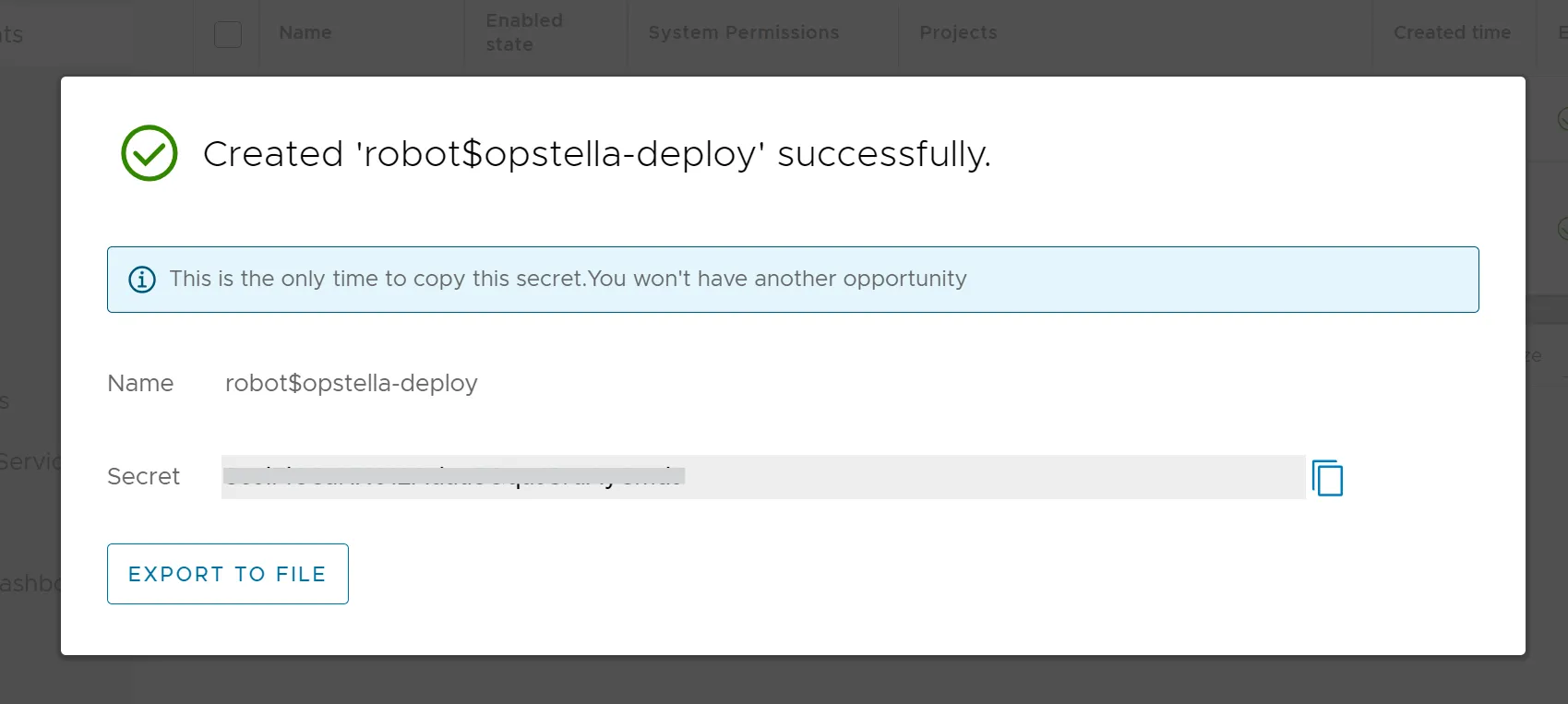
Create Robot Account for Opstella-managed GitLab Runner Access
Section titled “Create Robot Account for Opstella-managed GitLab Runner Access”This will be a credentials used to pull Artifacts for Opstella-managed GitLab Runners.
-
Go to
Administrationmenu >Robot Accounts -
Create New Robot Account
+ New Robot AccountBasic Information
- Name:
opstella-gitlab-runners - Description:
Access for Opstella-managed GitLab Runners - Expiration time:
Never
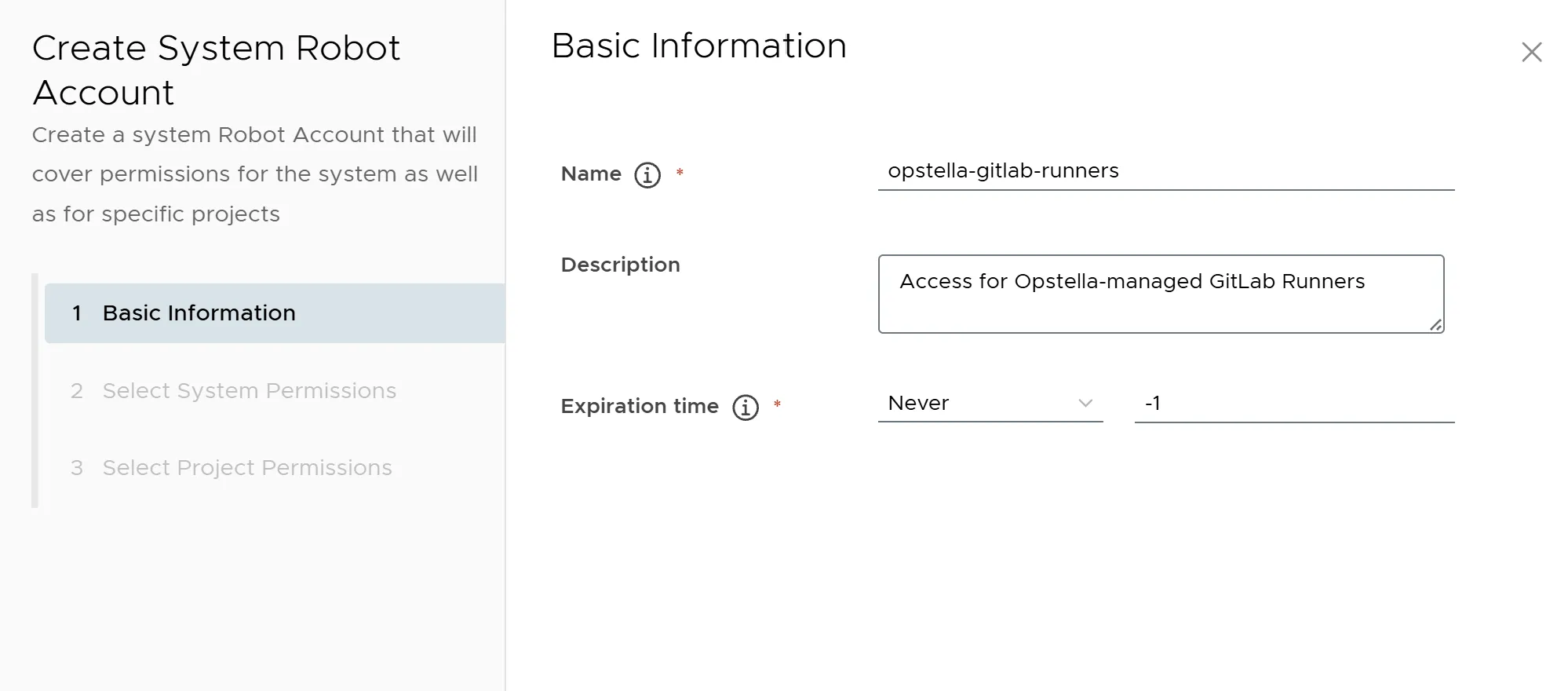
- Name:
-
Click
Nextto skip Assigning System Permissions -
Assign Projects Permissions
- Tick on Projects
-
library -
mirror-docker.io -
mirror-gcr.io -
mirror-quay.io -
mirror-ghcr.io
-
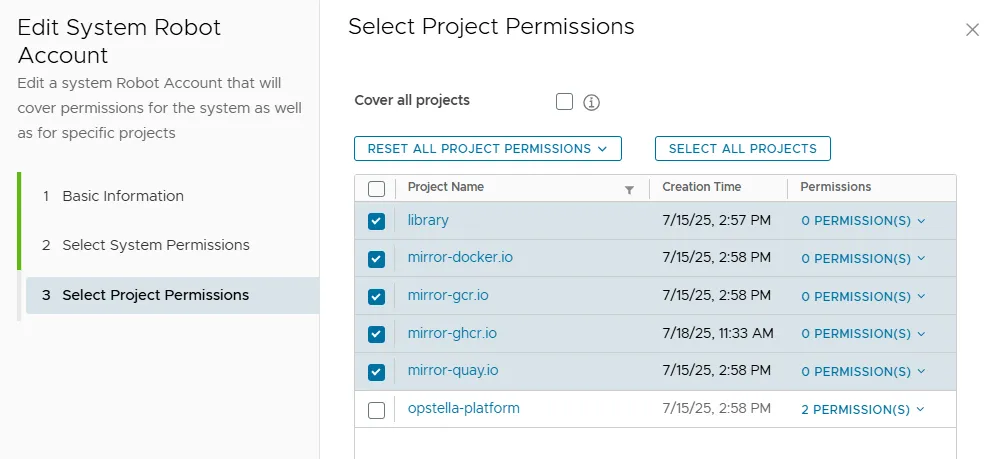
- Assign Pull Repository Permission with
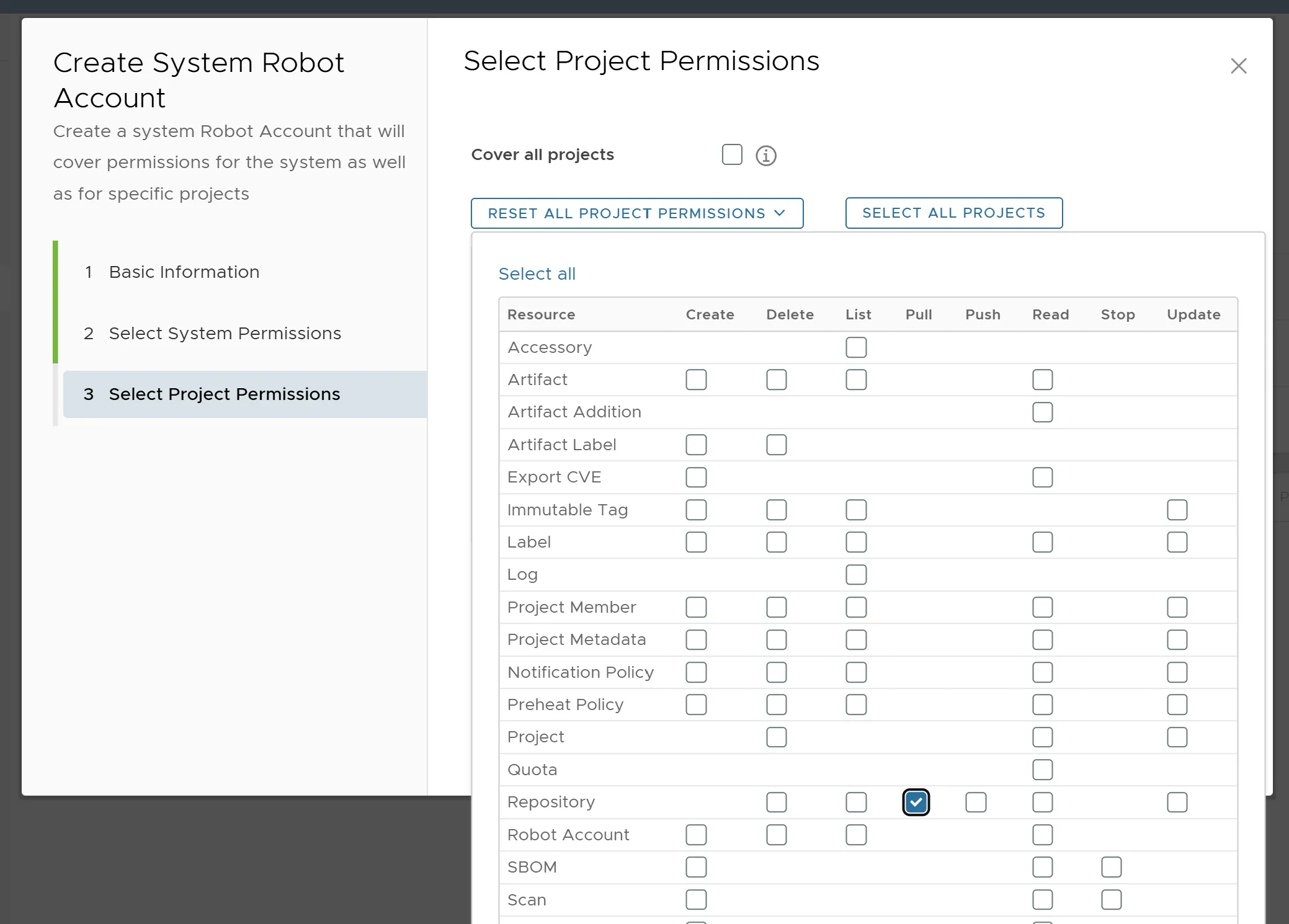
Reset All Project Permissionsand ClickFinish
- Tick on Projects
-
Keep the token SAFE as you will be using it while setup
Opstella-managed GitLab Runners Deployment Templatein the later step
Verify the Configurations
Section titled “Verify the Configurations”A healthy registry endpoint only proves Harbor can reach the source — it does not prove a proxy cache
can serve an image, and nothing on the screen proves a Robot Account got the permissions you intended.
Check both against the API:
H="https://${HARBOR_DOMAIN}"source $BASE_WORKING_DIR/shell-values/tools/harbor-robots.vars.shR="-u ${HARBOR_ROBOT_GITLAB_RUNNERS_NAME}:${HARBOR_ROBOT_GITLAB_RUNNERS_SECRET}"D="-u ${HARBOR_ROBOT_OPSTELLA_DEPLOY_NAME}:${HARBOR_ROBOT_OPSTELLA_DEPLOY_SECRET}"
# 1. every proxy cache really pulls through — expect 200curl -s -o /dev/null -w '%{http_code}\n' $R $H/v2/mirror-docker.io/library/alpine/manifests/3.20curl -s -o /dev/null -w '%{http_code}\n' $R $H/v2/mirror-quay.io/prometheus/busybox/manifests/latestcurl -s -o /dev/null -w '%{http_code}\n' $R $H/v2/mirror-ghcr.io/cloudnative-pg/postgresql/manifests/15curl -s -o /dev/null -w '%{http_code}\n' $R $H/v2/mirror-gcr.io/distroless/static/manifests/latest
# 2. the deploy Robot can talk to the registry — expect 200curl -s -o /dev/null -w '%{http_code}\n' $D $H/v2/
# 3. least privilege holds: the deploy Robot must NOT reach a mirror — expect 401curl -s -o /dev/null -w '%{http_code}\n' $D $H/v2/mirror-docker.io/library/alpine/manifests/3.20Alternative: configure with the Harbor REST API
Section titled “Alternative: configure with the Harbor REST API”Every step above can be done with the API instead of the UI, which is the only option when the Harbor Ingress is not reachable yet, on an air-gapped site, or when the configuration has to be reproducible.
source $BASE_WORKING_DIR/shell-values/tools/harbor.vars.shH="https://${HARBOR_DOMAIN}"A="-u ${HARBOR_ADMIN_USERNAME}:${HARBOR_ADMIN_PASSWORD}"J="-H Content-Type:application/json"
# 1. registry endpoints (ping first — Harbor itself must reach the source)curl -s $A $J -X POST $H/api/v2.0/registries/ping \  -d '{"type":"docker-hub","url":"https://hub.docker.com"}' -o /dev/null -w '%{http_code}\n'
curl -s $A $J -X POST $H/api/v2.0/registries \  -d '{"name":"docker.io","type":"docker-hub","url":"https://hub.docker.com"}'for r in gcr.io quay.io ghcr.io; do  curl -s $A $J -X POST $H/api/v2.0/registries \    -d "{\"name\":\"$r\",\"type\":\"docker-registry\",\"url\":\"https://$r\"}"done
curl -s $A $H/api/v2.0/registries   # note the id of each endpoint for the next step
# 2. projects — the plain one, then one proxy cache per endpoint idcurl -s $A $J -X POST $H/api/v2.0/projects \  -d '{"project_name":"opstella-platform","public":false}'curl -s $A $J -X POST $H/api/v2.0/projects \  -d '{"project_name":"mirror-docker.io","public":false,"registry_id":1}'# repeat for mirror-gcr.io / mirror-quay.io / mirror-ghcr.io with their own registry_id
# 3. robot accounts ("duration": -1 means never expires)curl -s $A $J -X POST $H/api/v2.0/robots -d '{  "name":"opstella-deploy","level":"system","duration":-1,  "permissions":[{"kind":"project","namespace":"opstella-platform","access":[    {"resource":"repository","action":"pull"},{"resource":"repository","action":"push"}]}]}'
curl -s $A $J -X POST $H/api/v2.0/robots -d '{  "name":"opstella-gitlab-runners","level":"system","duration":-1,  "permissions":[    {"kind":"project","namespace":"library","access":[{"resource":"repository","action":"pull"}]},    {"kind":"project","namespace":"mirror-docker.io","access":[{"resource":"repository","action":"pull"}]},    {"kind":"project","namespace":"mirror-gcr.io","access":[{"resource":"repository","action":"pull"}]},    {"kind":"project","namespace":"mirror-quay.io","access":[{"resource":"repository","action":"pull"}]},    {"kind":"project","namespace":"mirror-ghcr.io","access":[{"resource":"repository","action":"pull"}]}]}'
The POST /api/v2.0/robots response is the only place the secret appears — store it right away, as
described above.
Push Opstella Container Images to Private Registry (Air-gapped Installation)
Section titled “Push Opstella Container Images to Private Registry (Air-gapped Installation)”Prerequisites
Section titled “Prerequisites”Before proceeding, ensure you have your Google Service Account Key (JSON) on the Bastion Host.
Define the required environment variables:
# Ensure HARBOR_DOMAIN, OPSTELLA_SOURCE_REGISTRY, OPSTELLA_VERSION and# OPSTELLA_UI_IMAGE_TAG are loaded from variablesexport SOURCE_REGISTRY="${OPSTELLA_SOURCE_REGISTRY}"export DEST_REGISTRY="${HARBOR_DOMAIN}/opstella-platform"export VERSION="${OPSTELLA_VERSION}"# Opstella UI is built per customer and carries its own tagexport UI_TAG="${OPSTELLA_UI_IMAGE_TAG}"-
Login to Registries
1.1 Login to Google Artifact Registry (Source) Use the JSON key file you downloaded earlier.
Terminal window # Replace path/to/key.json with your actual file pathcat path/to/key.json | docker login -u _json_key --password-stdin https://asia-southeast1-docker.pkg.dev1.2 Login to Local Harbor Registry (Destination) Use your previously created Robot Account.
Terminal window ## For security reasons turn off bash history momentarilyset +o history# Ensure REGISTRY_USERNAME and REGISTRY_PASSWORD are loaded from variablesdocker login $HARBOR_DOMAIN \--username "$REGISTRY_USERNAME" \--password "$REGISTRY_PASSWORD"set -o history -
Pull, Tag, and Push Images
We will pull images from the Google Cloud source, re-tag them for your local Harbor, and push them.
2.1 Core Services (UI, Backend, Utilities)
Terminal window # Opstella UI carries a per-customer tag, the rest follow VERSIONdocker pull "${SOURCE_REGISTRY}/ui:${UI_TAG}"docker tag "${SOURCE_REGISTRY}/ui:${UI_TAG}" "${DEST_REGISTRY}/ui:${UI_TAG}"docker push "${DEST_REGISTRY}/ui:${UI_TAG}"# List of core servicesCORE_SERVICES=("core" "clear-session")for SERVICE in "${CORE_SERVICES[@]}"; doecho "Processing ${SERVICE}..."# Pulldocker pull "${SOURCE_REGISTRY}/${SERVICE}:${VERSION}"# Tagdocker tag "${SOURCE_REGISTRY}/${SERVICE}:${VERSION}" "${DEST_REGISTRY}/${SERVICE}:${VERSION}"# Pushdocker push "${DEST_REGISTRY}/${SERVICE}:${VERSION}"done2.2 Opstella Workers
Push the specific worker images required for your installation.
#!/bin/bash# Define enabled instrumentsexport OPSTELLA_ENABLED_INSTRUMENTS=(keycloak kubernetes argocd-nonprod argocd-prod defectdojo gitlab headlamp-nonprod headlamp-prod harbor sonarqube vault grafana loki tempo)for KEY in "${OPSTELLA_ENABLED_INSTRUMENTS[@]}"do# Normalize image names (remove suffixes like -prod/-nonprod)if echo "$KEY" | grep -q "^argocd"; thenexport IMAGE_NAME="argocd"elif echo "$KEY" | grep -q "^headlamp"; thenexport IMAGE_NAME="headlamp"elif echo "$KEY" | grep -q "^kubernetes"; thenexport IMAGE_NAME="kubernetes"elseexport IMAGE_NAME="$KEY"fiSOURCE_IMAGE="${SOURCE_REGISTRY}/worker-${IMAGE_NAME}:${VERSION}"DEST_IMAGE="${DEST_REGISTRY}/worker-${IMAGE_NAME}:${VERSION}"echo "Processing Worker: ${IMAGE_NAME}..."# Pulldocker pull "$SOURCE_IMAGE"# Tagdocker tag "$SOURCE_IMAGE" "$DEST_IMAGE"# Pushdocker push "$DEST_IMAGE"done
Mirroring with crane instead of docker
Section titled “Mirroring with crane instead of docker”Same result as the pull/tag/push loops above, without a container runtime and without writing layers to local disk.
# Login to both sides (nothing is echoed)gcloud auth print-access-token \  | crane auth login ${ARTIFACT_REGISTRY_DOMAIN} -u oauth2accesstoken --password-stdin# ...or with the JSON key, matching the docker login above:# crane auth login ${ARTIFACT_REGISTRY_DOMAIN} -u _json_key --password-stdin < path/to/key.json
source $BASE_WORKING_DIR/shell-values/tools/harbor-robots.vars.shprintf '%s' "$HARBOR_ROBOT_OPSTELLA_DEPLOY_SECRET" \  | crane auth login ${HARBOR_DOMAIN} -u "$HARBOR_ROBOT_OPSTELLA_DEPLOY_NAME" --password-stdin
# Copy every image, keeping the UI on its own tagcrane copy "${SOURCE_REGISTRY}/ui:${OPSTELLA_UI_IMAGE_TAG}" "${DEST_REGISTRY}/ui:${OPSTELLA_UI_IMAGE_TAG}"for IMAGE in core clear-session; do crane copy "${SOURCE_REGISTRY}/${IMAGE}:${VERSION}" "${DEST_REGISTRY}/${IMAGE}:${VERSION}"donefor KEY in "${OPSTELLA_ENABLED_INSTRUMENTS[@]}"; do IMAGE_NAME=$(echo "$KEY" | sed -E 's/-(non)?prod$//') crane copy "${SOURCE_REGISTRY}/worker-${IMAGE_NAME}:${VERSION}" \ "${DEST_REGISTRY}/worker-${IMAGE_NAME}:${VERSION}"doneVerify the Mirror
Section titled “Verify the Mirror”# 1. same content on both sidescrane digest "${SOURCE_REGISTRY}/core:${VERSION}"crane digest "${DEST_REGISTRY}/core:${VERSION}" # must be identical
# 2. the Robot Account that Kubernetes will use can read itsource $BASE_WORKING_DIR/shell-values/tools/harbor-robots.vars.shcurl -s -o /dev/null -w '%{http_code}\n' \ -u "${HARBOR_ROBOT_OPSTELLA_DEPLOY_NAME}:${HARBOR_ROBOT_OPSTELLA_DEPLOY_SECRET}" \ "https://${HARBOR_DOMAIN}/v2/opstella-platform/core/manifests/${VERSION}" # 200
# 3. a node can actually pull it — this is the check that catches node-side DNSkubectl create secret docker-registry harbor-pull-test \ --docker-server="${HARBOR_DOMAIN}" \ --docker-username="${HARBOR_ROBOT_OPSTELLA_DEPLOY_NAME}" \ --docker-password="${HARBOR_ROBOT_OPSTELLA_DEPLOY_SECRET}"kubectl run harbor-pull-test --restart=Never \ --image="${HARBOR_DOMAIN}/opstella-platform/core:${VERSION}" \ --overrides='{"spec":{"imagePullSecrets":[{"name":"harbor-pull-test"}]}}' \ --command -- sleep 30kubectl get pod harbor-pull-test -w # must leave ContainerCreating, not ImagePullBackOffkubectl delete pod harbor-pull-test; kubectl delete secret harbor-pull-testSteps 1 and 2 pass from the Bastion Host even when no node can pull the image. Do not skip step 3.
Finished?
Use the below navigation to proceed