

This is the Experimental version (Latest). It is under active development and may change. For the most reliable documentation, use the version selector in the top-right to switch to Stable, or click here to go to the Stable version's homepage.
Setup Single Sign-On of Harbor with Opstella
Last updated:
Prerequisites
Section titled “Prerequisites”To Setup Single Sign-On with Opstella, you need
- 📦Opstella Keycloak
- While you reading this section and have not yet setup Opstella Keycloak, you can skip its consideration for now.
- Your dedicated Keycloak Realm.
${KEYCLOAK_REALM}; Please change accordingly
- 🔑OpenID Connect Credentials: Client ID, Client Secret.
- Gather Client ID, Client Secret - from Opstella Keycloak Appendix - Gathering Client ID, Client Secret
Harbor with Opstella Single Sign-On Integration
Section titled “Harbor with Opstella Single Sign-On Integration”You need to go to Harbor instance that you have installed and configure within its settings menu.
-
Gather 🔑OpenID Connect Credentials (Client ID, Client Secret)
-
Go to
${HARBOR_DOMAIN}and Login with Initial Admin Account -
Go to
Administration>Configuration>AuthenticationConfigure by adjust/fill in the textfield follow by the list:
💡 Your dedicated Keycloak Realm.
${KEYCLOAK_REALM}; Please change accordingly-
Auth Mode:
OIDC -
OIDC Provider Name:
OPSTELLA(ALL CAPS) -
OIDC Endpoint:
https://${KEYCLOAK_DOMAIN}/realms/${KEYCLOAK_REALM} -
OIDC Client ID:
CHANGEME🔑 -
OIDC Client Secret:
CHANGEME🔑 -
Group Claim Name:
groups -
OIDC Scope:
openid,profile,email -
Verify Certificate: ✅ Yes (Ticked)
-
Automatic onboarding: ✅ Yes (Ticked)
-
Username Claim:
preferred_username
-
-
Click on
TEST OIDC SERVERand it should informConnection to OIDC server is verified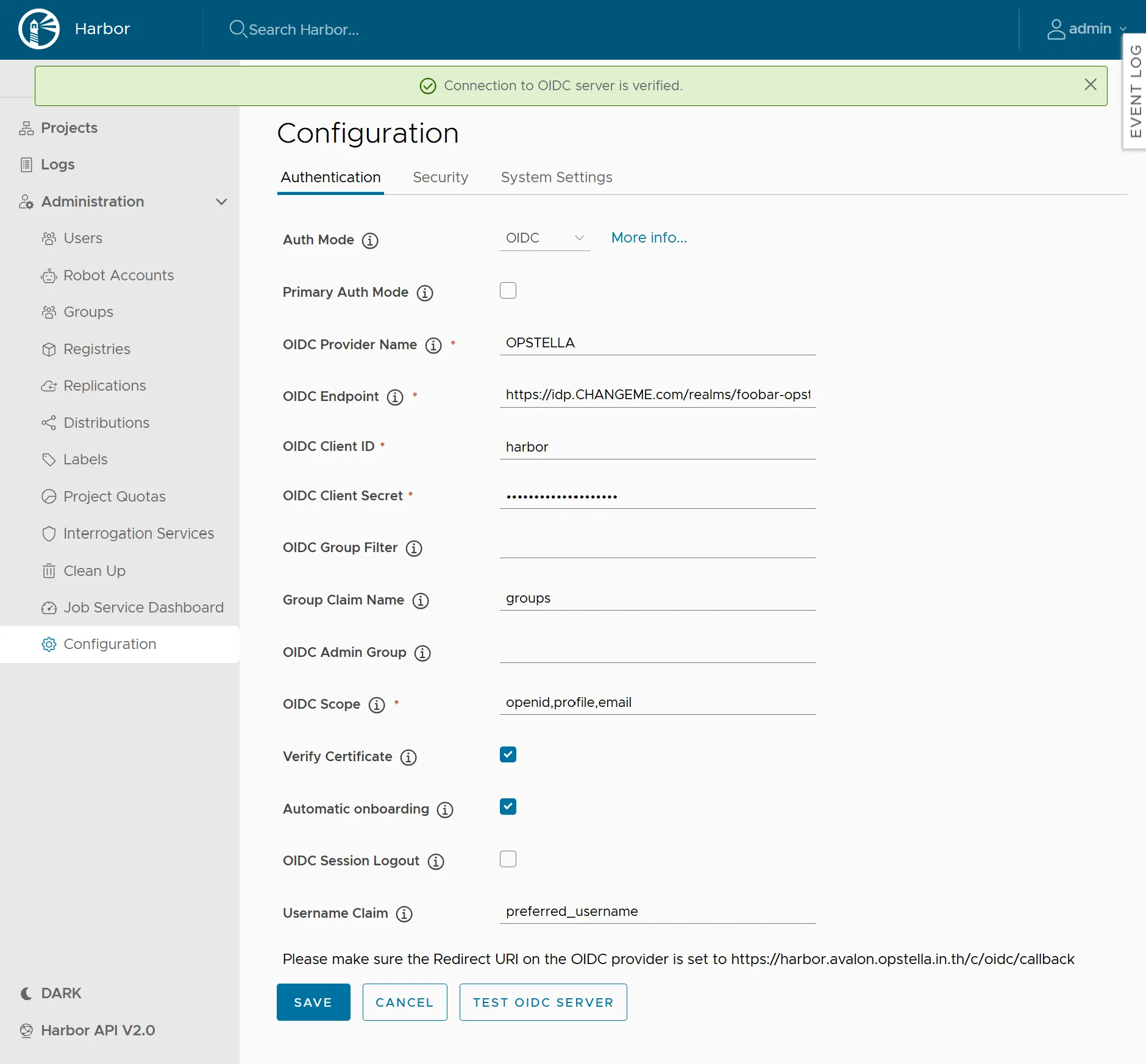
-
Click
SaveTesting Single Sign-On Integration in End-to-End Testing/Single Sign-On for Harbor
Configure the same settings over the API
Section titled “Configure the same settings over the API”The screenshots above are the only documented path, but the whole configuration is one API call. Use this when the Harbor UI is not reachable, or to script the configuration.
kubectl port-forward --namespace registry-system svc/harbor-core 18080:80 &curl -s -o /dev/null -w "%{http_code}\n" -u "admin:${HARBOR_ADMIN_PASSWORD}" \ -X PUT "http://127.0.0.1:18080/api/v2.0/configurations" \ -H "Content-Type: application/json" -d @- <<JSON{ "auth_mode": "oidc_auth", "oidc_name": "OPSTELLA", "oidc_endpoint": "https://${KEYCLOAK_DOMAIN}/realms/${KEYCLOAK_REALM}", "oidc_client_id": "${HARBOR_OIDC_CLIENT_ID}", "oidc_client_secret": "${HARBOR_OIDC_CLIENT_SECRET}", "oidc_groups_claim": "groups", "oidc_scope": "openid,profile,email", "oidc_verify_cert": true, "oidc_auto_onboard": true, "oidc_user_claim": "preferred_username"}JSON💡 Returns 200. Verify with:
curl -s -u "admin:${HARBOR_ADMIN_PASSWORD}" \ "http://127.0.0.1:18080/api/v2.0/systeminfo" | jq '{auth_mode, harbor_version}'Finished?
Use the below navigation to proceed