

This is the Experimental version (Latest). It is under active development and may change. For the most reliable documentation, use the version selector in the top-right to switch to Stable, or click here to go to the Stable version's homepage.
Opstella Integrations with Tools Testing
อัพเดทล่าสุด:
เนื้อหานี้ยังไม่มีในภาษาของคุณ
Opstella Single Sign-On Function
Section titled “Opstella Single Sign-On Function”✅ All of the steps below, if all done sucessfully, it can be said that Opstella Single Sign-On functions properly with other components.
Go to Opstella Single Sign-On Page
Section titled “Go to Opstella Single Sign-On Page”-
Go to
opstella.${BASE_DOMAIN}with Opstella Administrator Credentials
-
Go to Single Sign-On Page (SSO) ; Click
SSObutton on the left.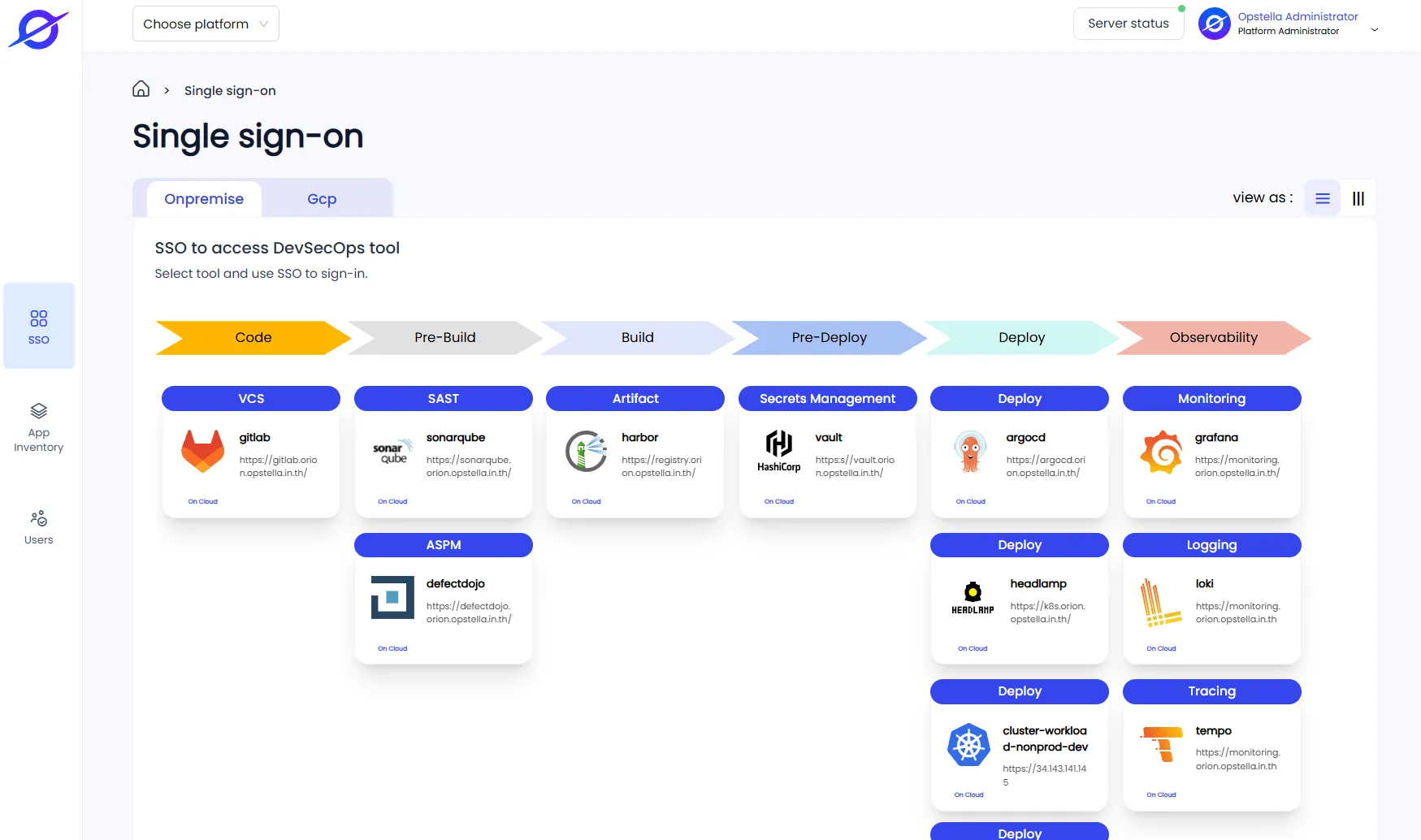
GitLab
Section titled “GitLab”-
From Single Sign-On Page Page > Click
GitLabfromCodeLane andVCSSection. -
It should redirect to GitLab Login Page with
or sign in withtext andOpstellabutton.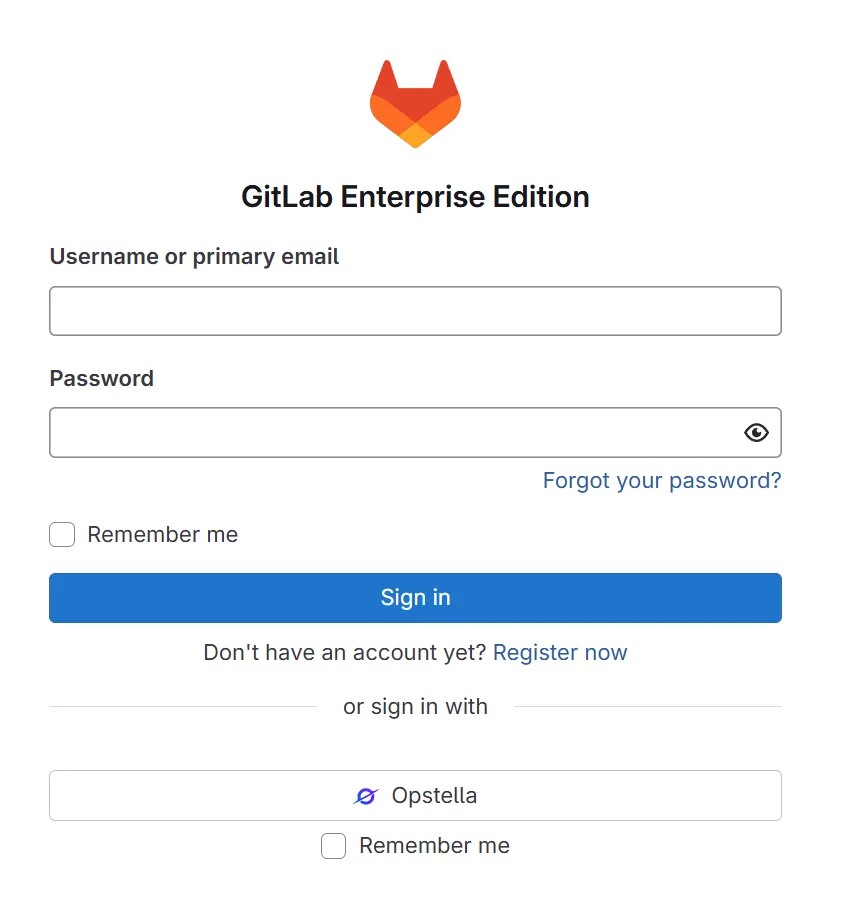
-
Click on
Opstellabutton and check for user information.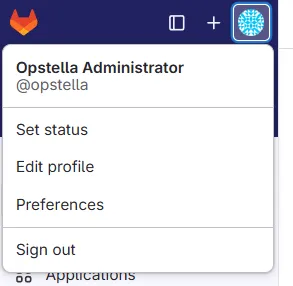
SonarQube
Section titled “SonarQube”-
From Single Sign-On Page Page > Click
SonarQubefromPre-BuildLane andSASTSection. -
It should redirect to SonarQube Login Page with
Log in with Opstella.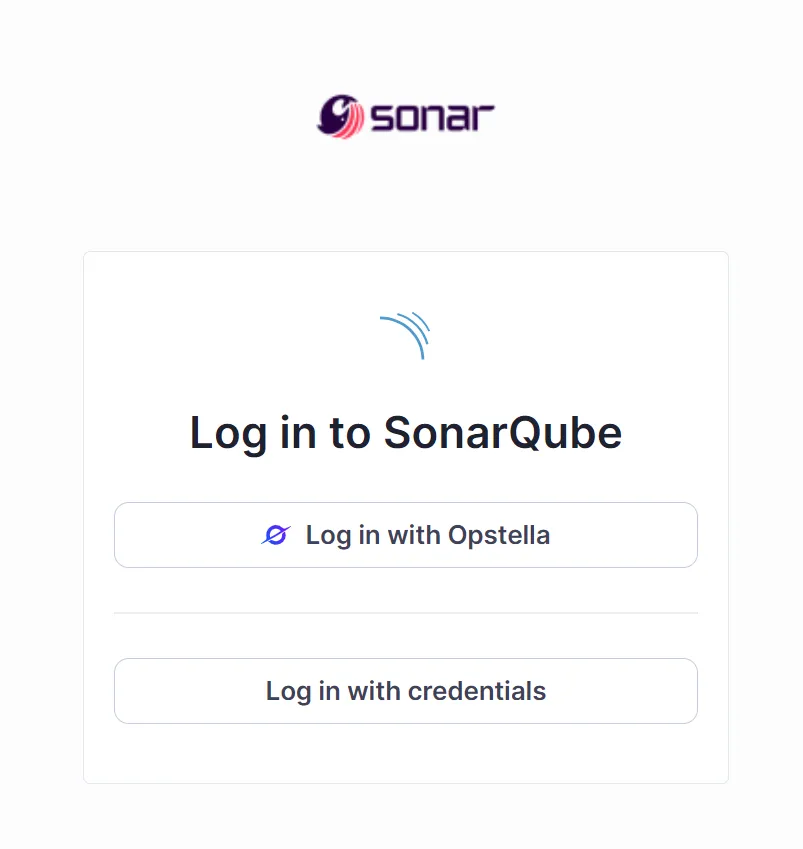
-
Click on
Login with Opstellaand check for user information.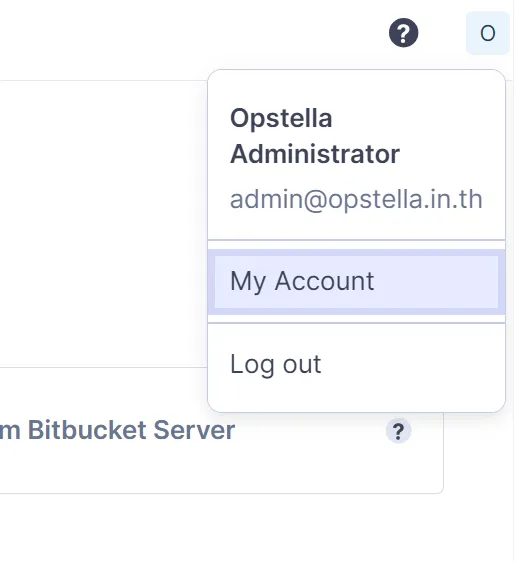
DefectDojo
Section titled “DefectDojo”-
From Single Sign-On Page Page > Click
DefectDojofromPre-BuildLane andASPMSection. -
It should redirect to DefectDojo Login Page with
Login with Opstella.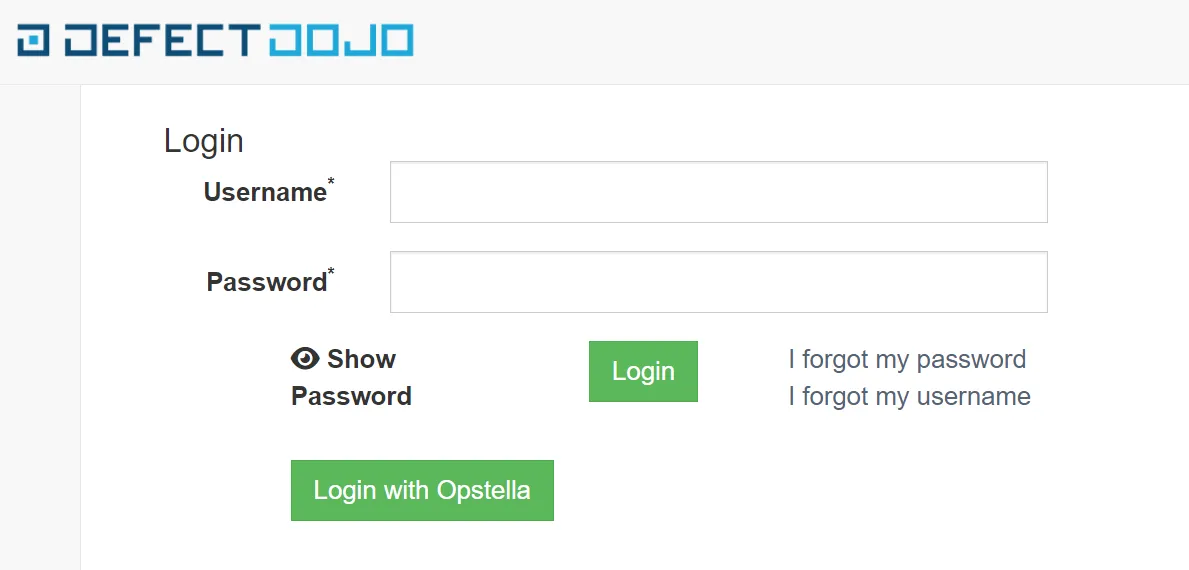
-
Click on
Login with Opstellaand check for user information.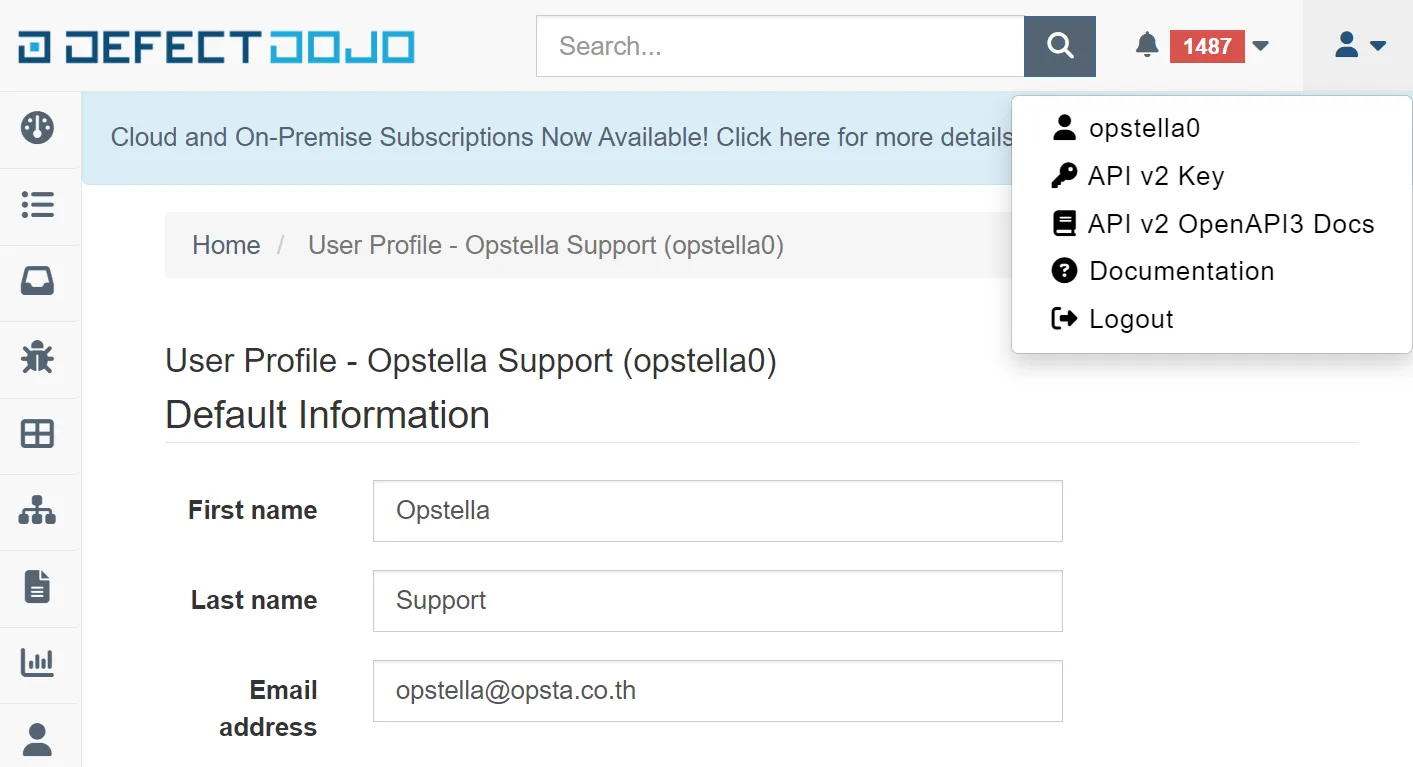
Harbor
Section titled “Harbor”-
From Single Sign-On Page Page > Click
HarborfromBuildLane andArtifactSection. -
It should redirect to Harbor Login Page with
LOGIN WITH OPSTELLA.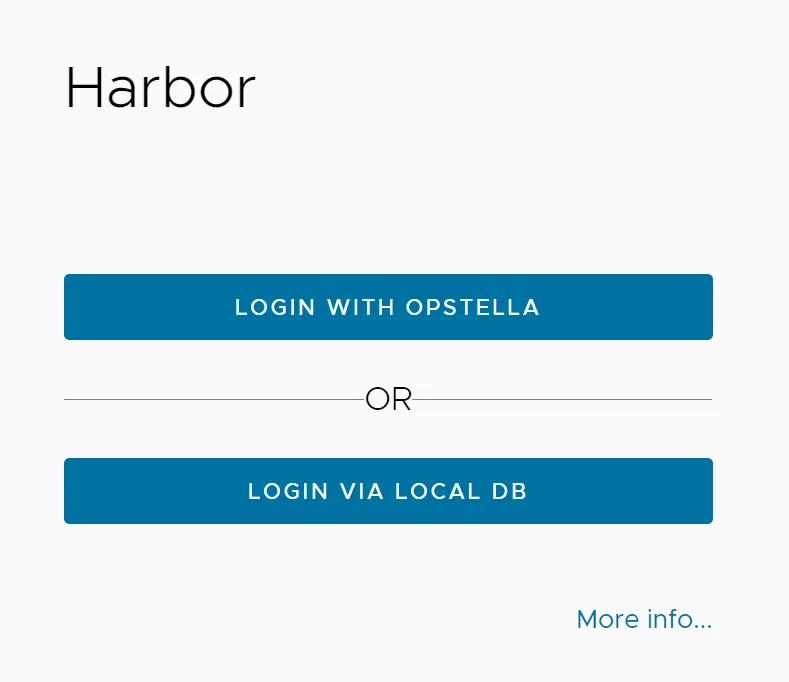
-
Click on
LOGIN WITH OPSTELLAand check for user information.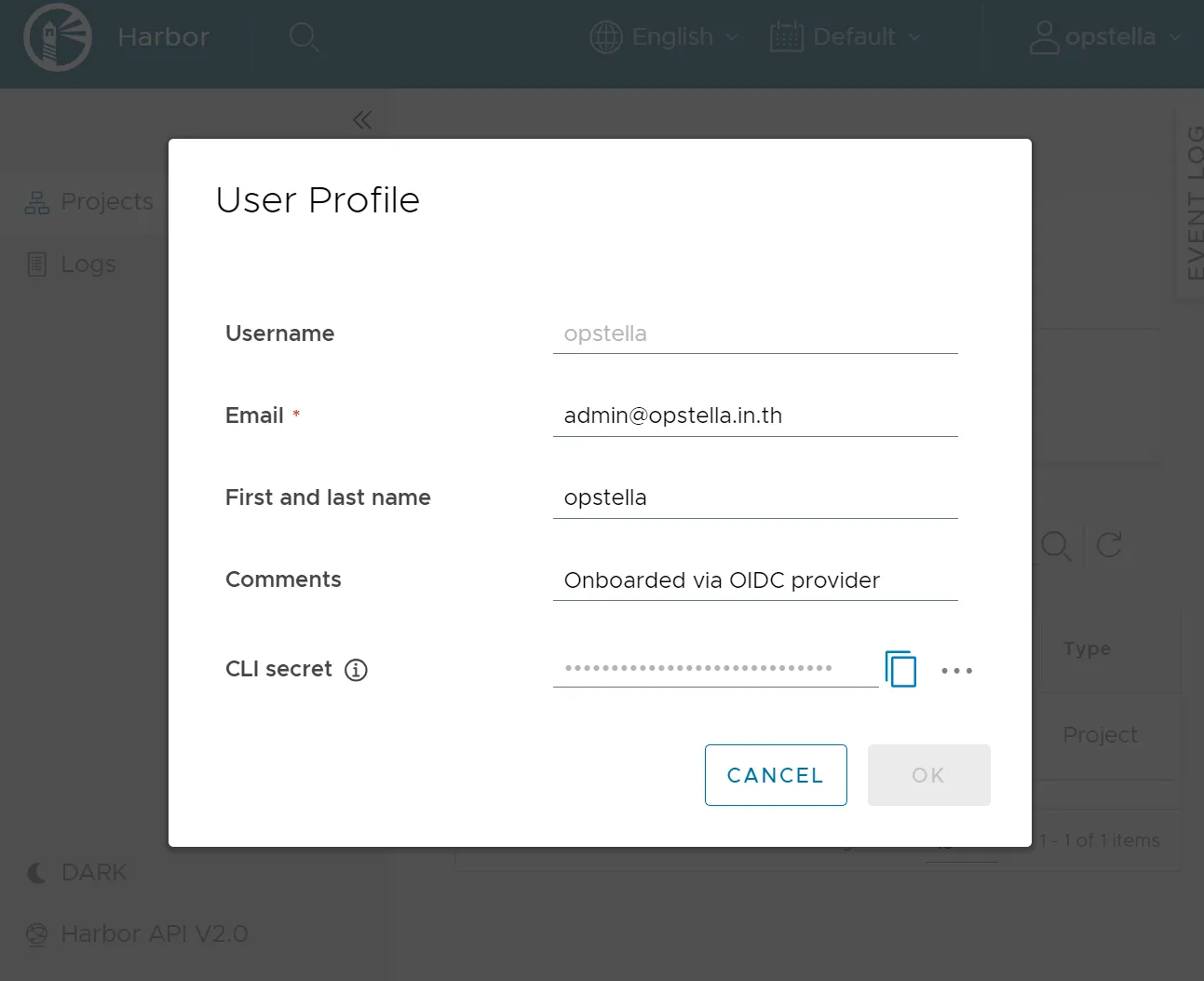
-
From Single Sign-On Page Page > Click
VaultfromPre-DeployLane andSecrets ManagementSection. -
It should redirect to Vault Login Page selecting
oidc/path (Opstella Platform SSO Integration).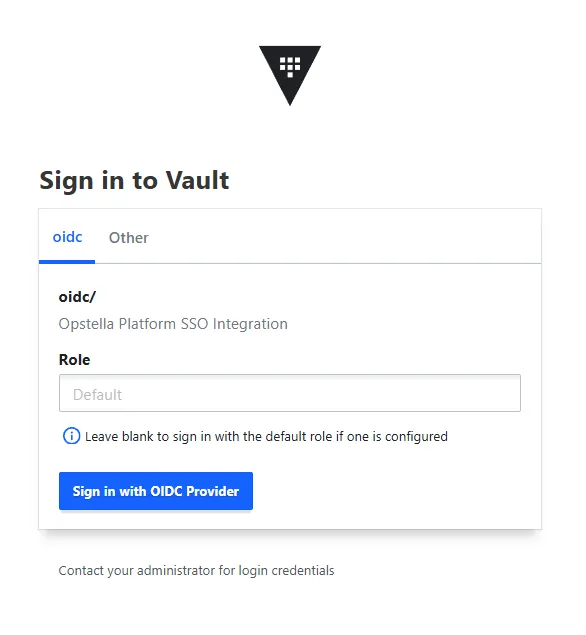
-
Click on
Sign in with OIDC Providerand check for user information.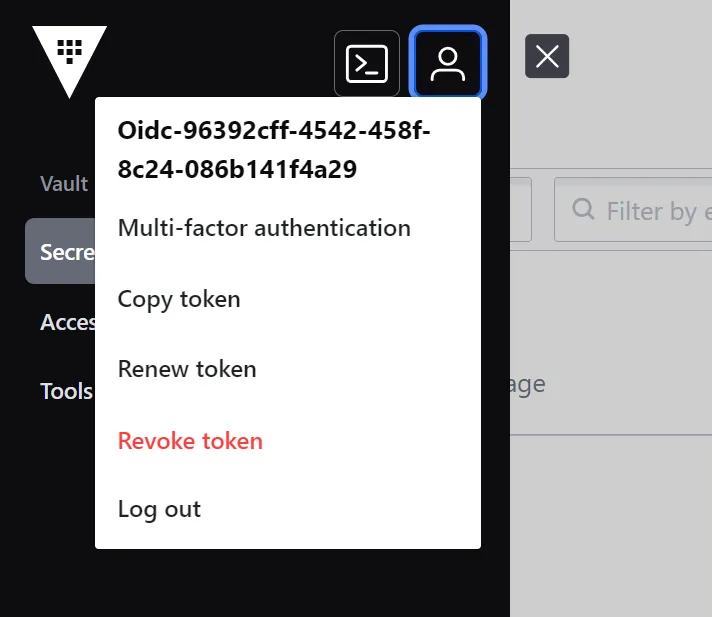
ArgoCD
Section titled “ArgoCD”-
From Single Sign-On Page Page > Click
ArgoCDfromDeployLane andDeploySection. -
It should redirect to ArgoCD Login Page with
LOG IN VIA OPSTELLA.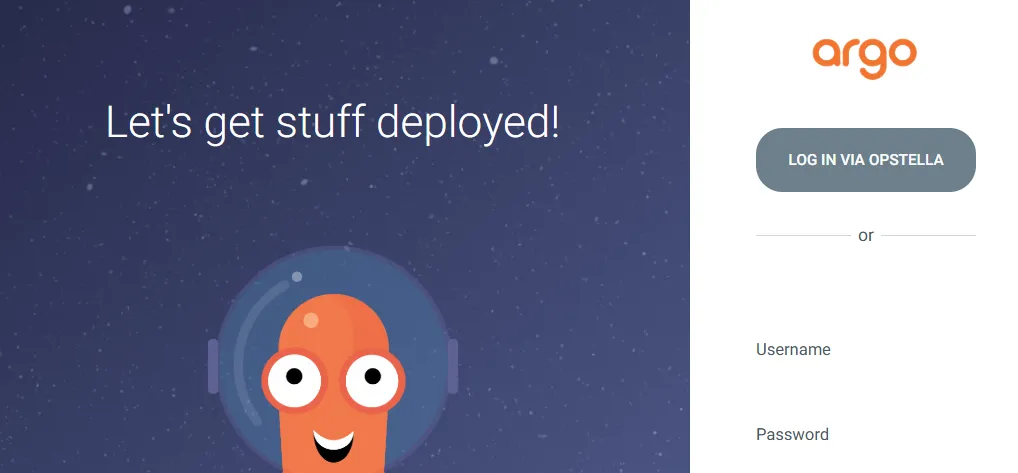
-
Click on
LOG IN VIA OPSTELLAand check for user information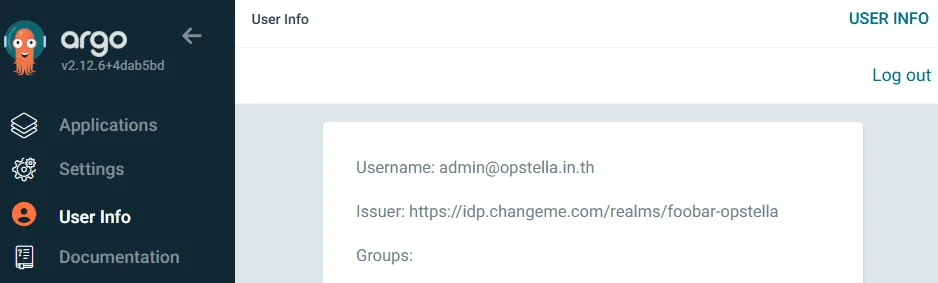
Headlamp
Section titled “Headlamp”-
From Single Sign-On Page Page > Click
HeadlampfromDeployLane andDeploySection. -
It should open Headlamp for the cluster of the environment you picked.
Headlamp as installed by Headlamp authenticates with a Service Account token, not with OIDC, so it asks you to paste a token instead of signing you in through Opstella. Create one on the matching cluster:
Terminal window kubectl create token headlamp -n devsecops-systemPaste it into Headlamp, and you can start browsing through Kubernetes Resources.
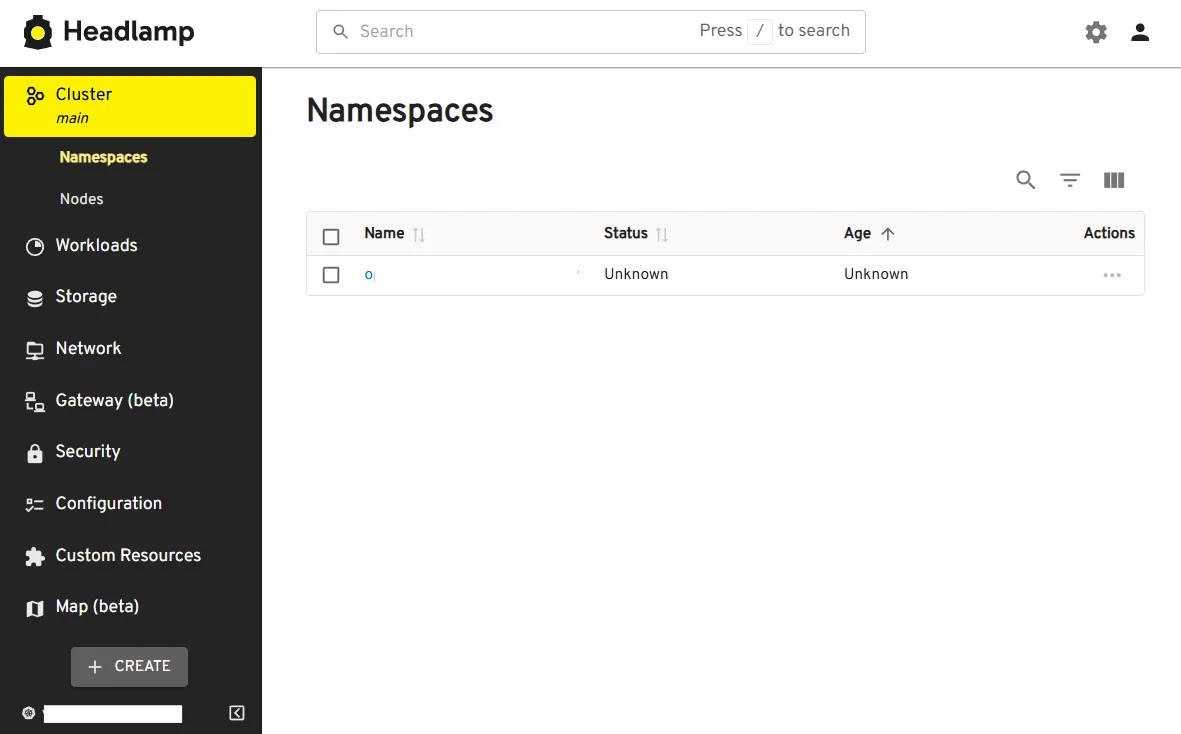
Grafana Dashboard
Section titled “Grafana Dashboard”-
From Single Sign-On Page Page > Click
GrafanafromObservabilityLane andMonitoringSection. -
It should redirect to Grafana Login Page with
Sign in with Opstella.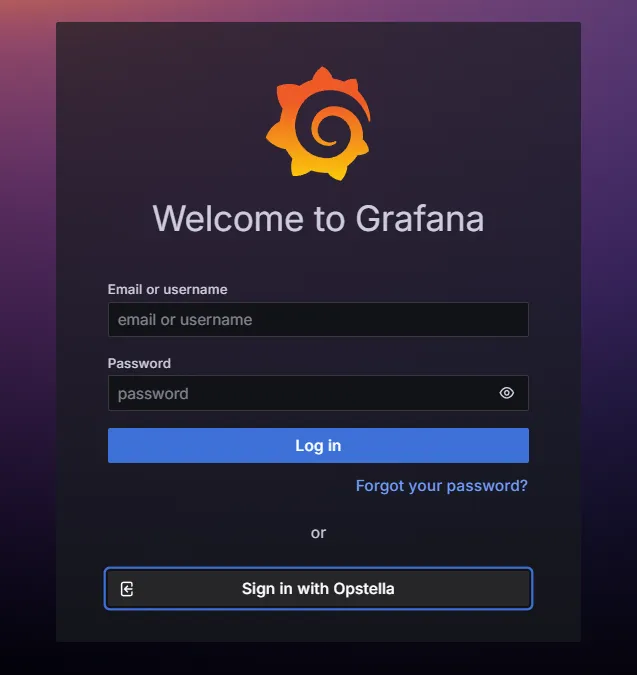
-
Click on
Sign in with Opstellaand check for user information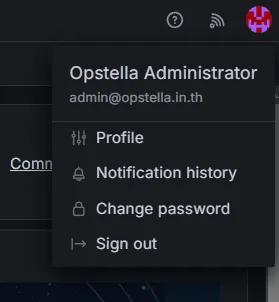
-
Verify that all Data Sources can be connected properly, Go to Left-side Menu > Connections > Data Sources. Add Data Source if not exists yet.
Be sure to be on Main Org. for Grafana Organization.
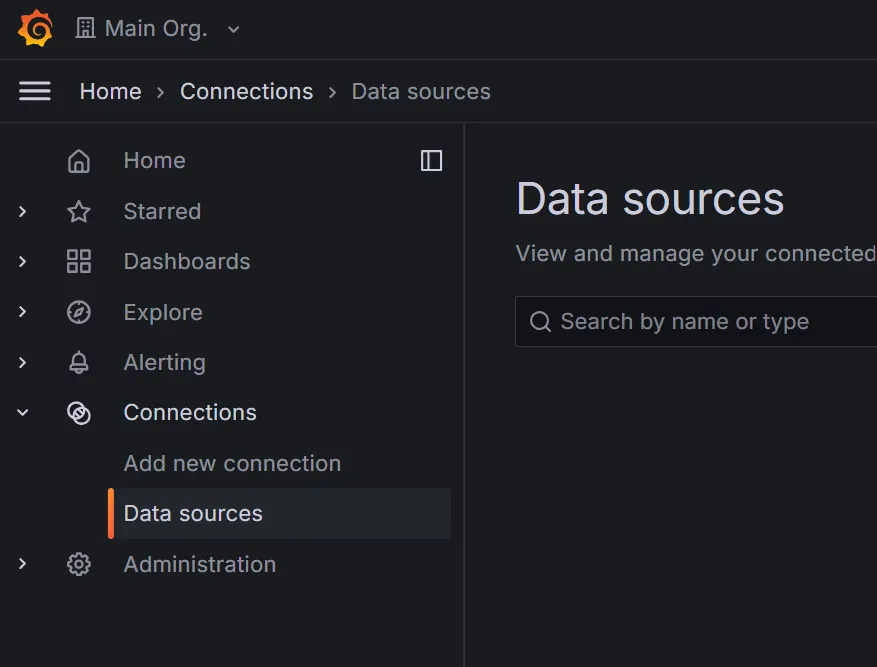
Click on + Add new data source

Add these customization to ALL Type of Data Source Settings.
-
Grafana Mimir
Type: Time series databases > Prometheus
Name: Mimir
URL:
https://mimir.${BASE_DOMAIN}/prometheus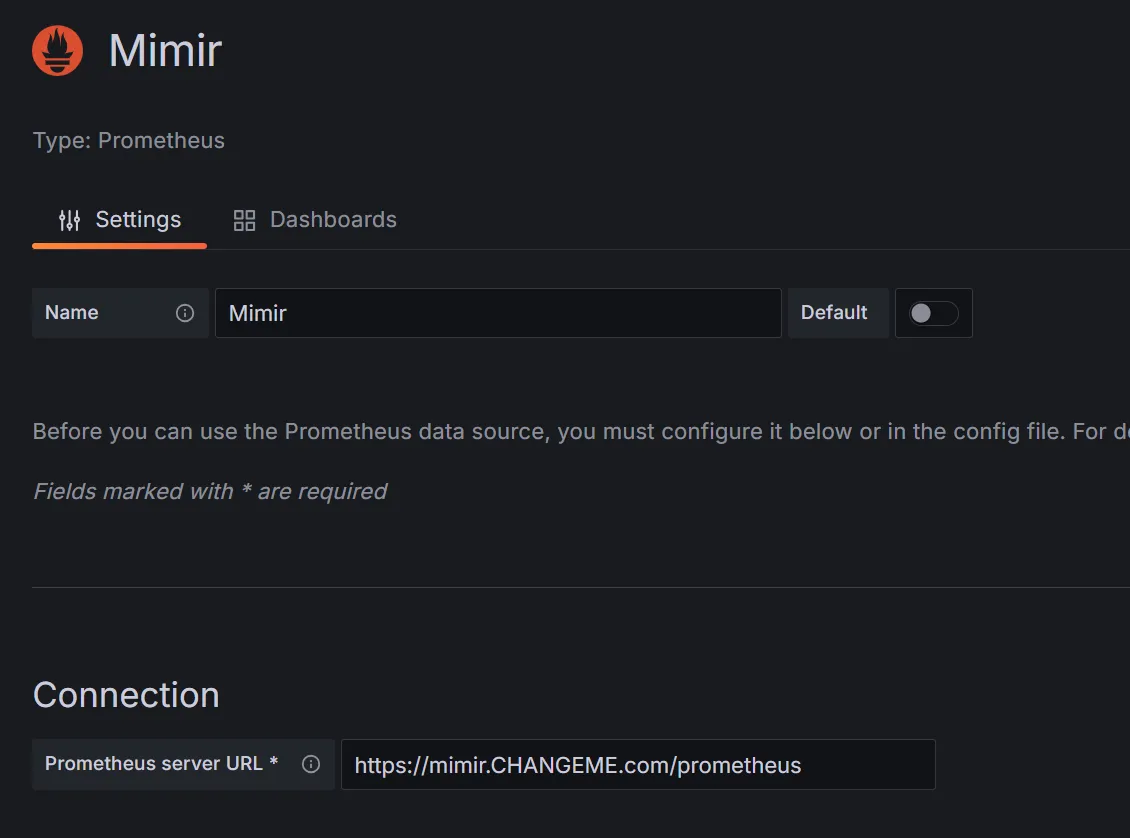
HTTP Headers:
- X-Scope-OrgID:
opstella-platform
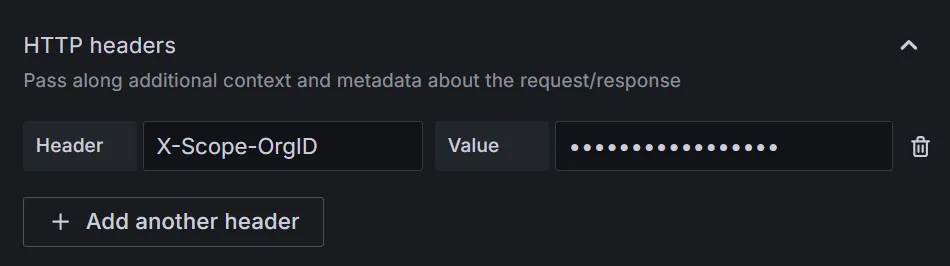
- X-Scope-OrgID:
-
Grafana Loki
Type: Logging & document databases > Loki
Name: Loki
URL:
https://loki.${BASE_DOMAIN}HTTP Headers:
- X-Scope-OrgID:
opstella-platform
- X-Scope-OrgID:
-
Grafana Tempo
Type: Distributed tracing > Tempo
Name: Tempo
URL:
https://tempo.${BASE_DOMAIN}HTTP Headers:
- X-Scope-OrgID:
opstella-platform
- X-Scope-OrgID:
Once you finished filling the settings, Click on
Save & Testbutton. It should show,✅ Data source successfully connected.

-
Verify without the Web Interface
Section titled “Verify without the Web Interface”The checks above are visual. Each tool also answers a request that proves which identity is signed in,
which is repeatable, scriptable, and works when the browser cannot reach a tool at all. Run them with the
session cookie of the browser you just signed in with (curl -b cookies.txt, or the browser’s own
console):
| Tool | Request | Passes when |
|---|---|---|
| GitLab | GET /api/v4/user | identities[].provider is openid_connect |
| SonarQube | GET /api/users/current | "externalProvider":"oidc" |
| DefectDojo | GET /profile | 200, showing the Opstella user |
| Harbor | GET /api/v2.0/users/current | "username" is your Opstella user |
| Vault | GET /v1/auth/token/lookup-self | "path":"auth/oidc/login" |
| ArgoCD | GET /api/v1/session/userinfo | "loggedIn":true and groups is populated |
| Grafana | GET /api/user | "authLabels":["Generic OAuth"] |
| Grafana data sources | GET /api/datasources/<id>/health | "status":"OK" |
Finished?
Use the below navigation to proceed